![AIM Logo Final White RGB@2x.png]](https://3437204.hs-sites.com/hs-fs/hubfs/AIM%20Logo%20Final%20White%20RGB@2x.png?height=50&name=AIM%20Logo%20Final%20White%20RGB@2x.png)
Most functionality in the program creates internal locks to prevent data from being worked on by multiple users. The lock has a purpose, but sometimes the process does not remove the lock properly, usually because it was interrupted. If the function does not work the next time, the process has become locked.
Error Message Example: Unable to clear locked <process> currently held by user <username>.
The process must be identified, as well as the payer involved (if applicable), to properly clear the lock.
Select the Utilities icon on the top right of the menu bar.

Within the Data Maintenance window, select the option: Clear Locked Process(es).
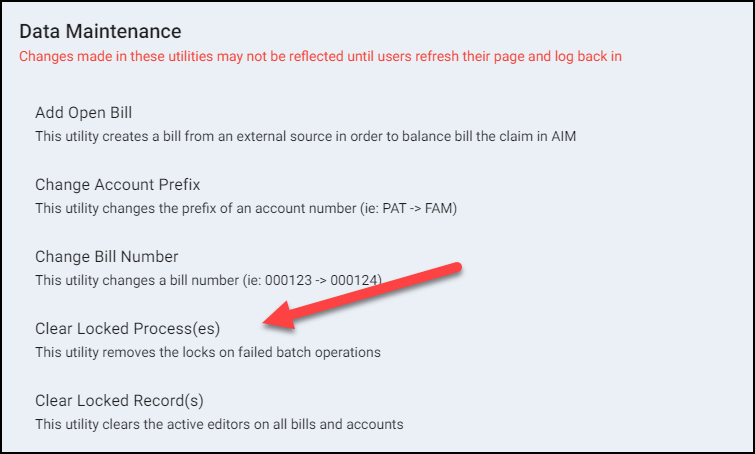
Enter all requested information to clear the locked process.
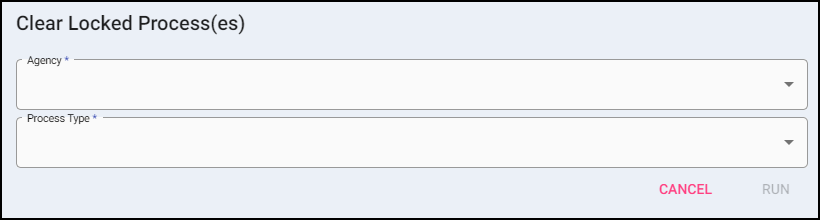
- Select the Agency (if applicable).
- Select the Process Type.
- Select the Payer Type (if applicable).
- Click Run.
- A prompt confirms the process has been cleared.
After exiting the Data Maintenance Menu, try the process again. If the process is still locked, make sure the proper process and payer are known, and run this utility again. Also, make sure no users are attempting to utilize the locked process.
A Locked Record is different from a Locked process, and only involves access to a specific Bill Number or Record in a Module. The Locked Record Error happens when the Record is Edited/Opened.