![AIM Logo Final White RGB@2x.png]](https://3437204.hs-sites.com/hs-fs/hubfs/AIM%20Logo%20Final%20White%20RGB@2x.png?height=50&name=AIM%20Logo%20Final%20White%20RGB@2x.png)
Configuration Switches Setup contains many miscellaneous configurations with can be used to customize the Dispatch application. The several sections of this area are detailed below.
PCR to Dispatch Data Synchronization Settings (Online Only)
Patient Care Numbering

The Patient Number is the main identification number of a record in the ePCR and Billing Modules of The AIM System. A Patient Number is an eleven-digit number (with an optional, manually-entered, alpha at the end). Unlike the other automatic numbering switches, the Maximum Patient Number cannot be more than eleven 9’s (as in, 99999999999).
Patient Care Numbers are important for the Billing Module. Always involve management and billers in decisions related to numbering to avoid confusion.
Add letter to trip number? allow a single alpha-suffix character to be saved in either the minimum or maximum fields whenever the Generation Type field equals Automatic (user defined range).
Automatic Trip Numbering allows the program to auto-generate a Patient Care Number (Trip Number) sequence for each new PCR entered into the ePCR Module of the AIM System.
There are two selections for Patient Care Numbering:
- Automatic (user defined range): Generates a sequence of numbers, beginning with the Minimum Value and ending with the Maximum Value entered below the drop-down. This is recommended when PCR data is posted to the Billing Module of the AIM System.
- Manual: the Patient Care Number Field is left blank for a user to enter this identifier.
If the Automatic (user defined range) is selected, the numbers begin with the Minimum Trip Number Value entered and run out with the number in the Maximum Trip Number Value. Either automatic option provides for a unique number for each PCR. These can then be populated to the Incident and Response Numbers.
For the Patient Care Number, The AIM System handles up to 11 digits, plus an alpha character (the alpha character CANNOT be included in the Value Range - use the 'Add Letter to Trip Number' option).
Note: Leading zeroes are not required. If entering 100, enter 100, not 00000000100.
Determine the number of transports expected in a year and allow for unexpected increases or situations by providing a Maximum Value of all 9’s for that amount. For example, if 1000 PCRs are expected in a year, it is best to have up to five digits for the Trip Number Range (zero for the Minimum and 9999 for the Maximum).
The message “Auto generated max number 0 = unlimited” means that entering zero (0) in the Maximum Number Field does not limit the Automatic Numbering for that identifier.
When determining a value range, the best practice is to determine the number of runs expected in a year, and then allow for unexpected increases. For example, if 1000 runs are expected in a year, it is best to have up to five digits for the Number Range (zero for the Minimum and 9999 for the Maximum).
Hint: Numbering can also indicate the year of the run. While this is handled by the Incident Date and/or Date of Service Fields, and reports provide date ranges, providing this reference makes it easier to identify when each run occurred.
It should not be expected that every sequential identification number exists or is valid. Calls can be started with an identification number, but not saved (or later deleted), which causes gaps. Keep in mind that a missing number does not necessarily mean missing calls.
Incident Numbering

The Incident Number is the main identification for any call in the Dispatch Module.
There are three selections available:
- Automatic (user defined range): Generates a sequence of numbers, beginning with the Minimum Value and ending with the Maximum Value entered below the drop-down. This is recommended when PCR data is posted to the Billing Module of the AIM System.
- Manual: the Patient Care Number Field is left blank for a user to enter this identifier.
- Sync with Patient Care Number (only available for customers with both AIM Dispatch and AIM ePCR): automatically aligns the current trip numbering sequence in Dispatch, allow for the trip number sequence to still be ordered correctly while call is not being dispatched to the PCR author. With the Sync to Patient Care Number Switch, the Incident Number populates as the Patient Care Number.
Response Numbering

The Response Number is an optional identification for calls in the Dispatch Module.
There are three selections available:
- Automatic (user defined range): Generates a sequence of numbers, beginning with the Minimum Value and ending with the Maximum Value entered below the drop-down. This is recommended when PCR data is posted to the Billing Module of the AIM System.
- Manual: the Patient Care Number Field is left blank for a user to enter this identifier.
- Sync with Patient Care Number (only available for customers with both AIM Dispatch and AIM ePCR): automatically aligns the current trip numbering sequence in Dispatch, allow for the trip number sequence to still be ordered correctly while call is not being dispatched to the PCR author. With the Sync to Patient Care Number Switch, the Response Number populates the number generated for the Patient Care Number.
Date Linking
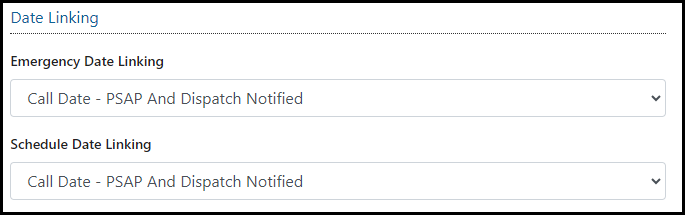
Date Linking links the data entered in the Call Date Field to PSAP (Public Safety Answering Point) and/or the Dispatch Notified Fields to avoid ongoing repetitive data entry, when these fields are expected to be the same.
Depending on the option selected, data entered in the Call Date populates in the selected field(s). If the dates for these three fields are to be entered separately, select None to avoid confusion.
Select a Posting Option if other modules exist for The AIM System. There are four selections available:
- Call Date - Dispatch Notified
- Call Date - PSAP
- Call Date - PSAP and Dispatch Notified
- None
Service Date Mapping

Service Date Mapping will automatically update the Service Date to the same as the Left Scene Date entered.
AIM Module Interface Options

Select a Posting Option if other modules exist for The AIM System.
- None: no calls will not be moved to another Module.
- Post to the Billing Module: enables the movement of calls to the Billing Module.
- Post to the PCR Module: enables the movement of calls to the PCR Module.
Include Narrative Checkbox provides the Narrative data from the Dispatch Module to the selected module of the Interface Options when the call is posted. Mark this if either the PCR or Billing Module exists, as the Narrative is an important reference for billing the services of the call and should include the data entered by dispatcher that relates to the ongoing record.
Post Specialty Care Information to PCR Narrative enables the information from the Speciality Care Tab to post the the Notes Tab and the Narrative Tab.
Post Mileages To Narrative enables the mileages to post to the Dispatch calls narrative.
The movement of a call or run or record is handled by a prompt when the call is finished. If moved, the Patient Number corresponds to the Patient Care Number of the ePCR and Billing Modules. (This is also called the Trip Number in established terminology and usage of The AIM System.)
Note: If the PCR Module exists, all calls must be worked in the PCR Module before they are posted to the Billing Module.
Scheduled Call Alert

Mark the Alert Schedule Call Checkbox to set a warning based on the minutes entered in the Schedule Call Alert Minutes Field and based on the current time of scheduled calls in the Dispatch Module.
Note: This warning is removed when the unit is updated to an En Route Date/Time.
Patient Weight

Mark the Alert Maximum Patient Weight Exceeded Checkbox to set a warning based on the patient weight entered on a call.
Communications
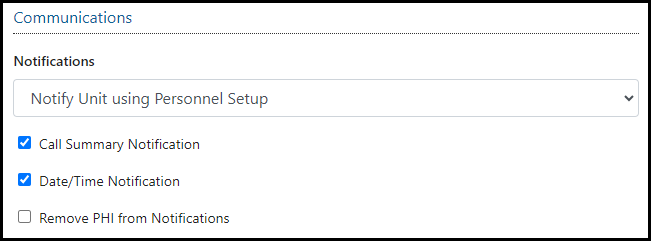
When a notification is set, crew members of a unit receive a notification when the Unit Notified Time is entered, and when the call is finished based of setup of selection.
Note: This requires additional setup in Personnel and Vehicle.
When Call Summary Notification is selected, the first dispatch notification will send provided the Notifications dropdown is not equal to “No Notifications”.
When Date/Time Notification is selected, the second dispatch notification will send provided the Notifications dropdown is not equal to “No Notifications”.
If neither Call Summary Notification or Date/Time Notification is selected, no notification will send, regardless of the setting selected in the Notifications dropdown.
When Remove PHI from Notifications is selected, in conjunction with “Enable PCR Notifications”, the patient name will be omitted form the notification text/e-mail triggered by entering a “Unit Notified By Dispatch Date/Time” on an assigned Dispatch Call.
PCR to Dispatch Data Synchronization Settings (Online Only)
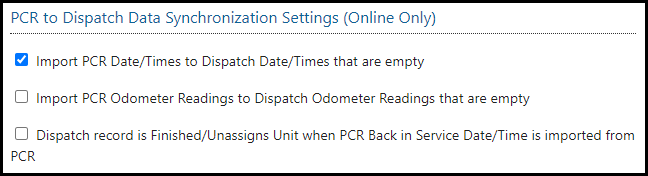
When Import PCR Date/Times to Dispatch Date/Times that are empty is selected, the process to import times from a PCR record to a Dispatch record will occur. This occurs for any Date/Times on the Times tab.
When Import PCR Odometer Readings to Dispatch odometer Readings are empty is selected, whena user enters an odeomter reading on a PCR and save, the odometer reading will populate to the associated odometer reading field in the linked Dispatch record, if a linked dispatch record exists. If any odometer readings are present in teh Dispatch record, they will not by overwrote.
When Dispatch record is Finished/Unassigns Unit when PCR Back in Service Date/Time is imported from PCR is selected, any Dispatch record that has a Black in Service Date/Time field imported form PCR will automatically be Finished and the unit un-assigned.
Other Options

Enable Default of Response Urgency from Response Mode to Scene: When enabled,
Ignore Assigned Units: When selected, assigned units may be assigned to more than one call.
Disable Auto Refresh of Call Queue: When selected, requires users to complete a manual refresh in order for the Call Queue to update.
Default Call Queue Sort By: Defaults the Call Queue Sort By filter. Available options include: Destination Address, Incideint Number, Incident Status, Incident Type, Patient Care Number, Pick Up Date/Time, Priority, Scene Address, Service Date, Service Level Type, Station or Vehicle Name.
Exclude Blank Specialty Care Fields From PCR Notes: If selected, blank fields will be left out of the notes when the dispatch incident is imported to ePCR.
Default Calendar View: Determines which of the Calendar View (Single Day/Week/Month/Hour) settings will display by default in the Calendar.
Require Narrative Template: When enabled, the narrative texbox is hidden until a Narrative template is selected.
Add Attachments to Finished Trips: When enabled, the Attachment Page, Attachment Tab, and Attachment Section is available for use, even if the Dispatch Call is in a ‘Finished’ status.