![AIM Logo Final White RGB@2x.png]](https://3437204.hs-sites.com/hs-fs/hubfs/AIM%20Logo%20Final%20White%20RGB@2x.png?height=50&name=AIM%20Logo%20Final%20White%20RGB@2x.png)
There are two types data entry for a bill that was sent to a Primary Payer, processed, and sent to another Payer as the “Secondary Payer”. Usually this involves Medicare as the Payer billed after a Primary Payer, but it can involve other Payers – Commercial or Medicaid. With Medicare, this is called Medicare as Secondary Payer or MSP.
In this guide, the payer is assumed to be Medicare, but this same approach applies to any payer.
Electronic Secondary Payer Data Entry
With Primary Payments or Adjustments
Electronic Secondary Payer Data Entry
The first type is data entry at the line level. This is used when the Primary Payer made Payments and/or Contractual Adjustments on the bill.
The second type is data entry at the claim level. This is used when the Primary Payer rejects or does not pay on the bill. Medicare Secondary Payer Claims are paid at the Claim Level.
The program will navigate the user to the necessary screen (line level or claim level) based on the payer’s position.
If unexpected or unexplained rejections occur, contact Customer Support at 1-800-726-4362.
With Primary Payments or Adjustments
If the Primary Payer has acted upon the bill, post the Payments and/or Adjustments using the standard procedure. Post a Rebill (RB) Transaction, adding the Medicare Payer to the bill. After entering all appropriate fields, several additional data entry steps must be addressed.
- Add the Medicare Payer and enter data as with a Medicare Claim. The bulk of this data entry is in “Additional Information” for the “MDC Electronic (J#)” Payer, on the Bill Payers Screen:

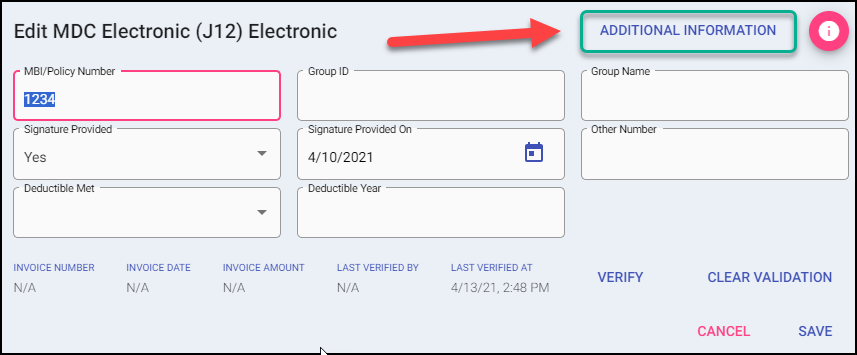
- Click the Additional Information Button, and stay on the Payer Information Tab.
Supplemental Insurance Information
This section contains details about the primary payer and requires completion for secondary payers. Most fields will automatically complete if entered for the primary payer with the exception of Group Name, Number, and Insurance Type Code.

The following fields are considered mandatory:
- Insurance Indicator: Select the best fit for the billing scenario involved.
- Insurance Name: Always use the Select Payer button to identify the Primary Payer. Use the Delete button to remove the Payer.
- Commercial Electronic ID: This is a five-digit number provided to identify the Primary Payer.
- Relationship to Insured: This field is Mandatory and should be “18 – Self”.
- Source of Pay: This describes the Supplemental Payer.
- Assign/Non-Assign: This field shows that the Company is “assigned” to receive Payment on this claim from the Payer.
- Insurance Type Code: Select the best fit for the billing scenario involved.
- Enter the following fields if information is available for the Primary Payer, these are situational: Insurance Number, Group Number, and Group Name.
Pull Primary Payer Data Button
Users can utilize the Pull Primary Payer Data Button to automatically pull most of the data from the primary payer, if applicable. This only applies if the data entry for the primary electronic payer was not entered at the time the next electronic payer is added.
This is a list of fields that do NOT populate automatically to subsequent electronic payers:
- Edit Payer Screen:
- Profile (profiles must be applied to individual payers)
- Group ID (not needed in some circumstances)
- Group Name (not needed in some circumstances)
- Other Number (not needed in some circumstances)
- Deductible Met / Year / Balance (specific to that payer)
- Additional Information > Payer Information Tab fields:
- Prior Authorization Number (specific to that payer)
- Commercial Electronic ID (specific to that payer)
- Provider Number (specific to that payer)
- Place of Service (may require changes in some circumstances)
- Frequency Type (specific to that payer)
- Original Reference Number (specific to that payer)
- Additional Information > Supplemental Insurance Tab fields:
- Claim Insurance Indicator
- Group Name
- Group Number
- Insurance Type Code
This is a list of fields that WILL populate automatically to subsequent electronic payers:
- Edit Payer Screen:
- Signature Provided
- Signature Provided On
- Additional Information > Payer Information Tab:
- Patient Signature Source
- Claim Editing Indicator
- Assign/Non-Assign
- Assignment of Benefits
- Claim Office Number
- Source of Pay
- Relationship to Insured
- Facility ID
- Type of Service
- Payer State
- All Physician Information Section fields
- Supplemental Insurance Information Section fields:
- Insurance Name
- Commercial Electronic ID
- Claim Office Number
- Insurance Number
- Relationship to Insured
- Source of Pay
- Assign/Non-Assign
- All fields in the Ambulance Information Tab
- All fields in the Miscellaneous Information Tab
Reminder: if this information is added to the primary payer prior to adding the secondary payer, this data pulls automatically and the Pull Primary Payer Data button isn't needed.
Send as Secondary Payer Checkbox
If the Medicare Payer is in the Primary Payer slot, but Medicare is billed as a Secondary, this checkbox will automatically be marked when the Additional Secondary Payer Information button is selected.
Additional Secondary Payer Info
Click on the Additional Secondary Payer Information Button. You will be directed to the necessary screen based on the payer position.

Explanation of Benefits Information Screen - Line Level:

- At the top of the EOB Information Screen, enter these fields: Allowed Amount, Paid Amount, Coinsurance and Deductible (as shown on the EOB). If no Coinsurance or Deductible is identified, the best practice is to use Coinsurance.
The Interest field is likely unused. - Enter the Date of EOB field by typing in the Date, or select the Date from the Calendar in the Date of EOB field. Date of EOB is the Date of the response from the Primary Payer.
- Enter the Claim Adjustment Information. A PR Line (showing Patient Responsibility) should be entered and a second (CO) Line is also entered if a Contractual (which is being billed to MDC) was taken by the Primary Payer.
Lines can be entered in any order, but each line requires all three fields to be entered (Group Code, Reason Code and Amount).
-
Click Update to save the data.
Without Primary Payment
If the Primary Payer rejects a claim without Payments or Contractual Adjustments, the data entry varies.
The following section details how to bill when Medicare remains in the Primary Payer position on the Payers Screen.

Avoid deleting a Payer in the program, even if they did not pay. The Payers billed should remain on the Bill Number for reference purposes, and if they are determined to be responsible, it avoids having to re-enter the information and maintains what was billed.
Enter the Supplemental Insurance Information to identify the Primary Payer.
Supplemental Insurance Information
Enter all known Medicare fields; avoid entering data if the fields are unknown. 
The following fields are considered mandatory:
- Insurance Indicator: Select the best fit for the billing scenario involved.
- Insurance Name: Always use the Select Payer button to identify the Primary Payer. Use the Delete button to remove the Payer.
- Commercial Electronic ID: This is a five-digit number provided to identify the Primary Payer.
- Relationship to Insured: This field is Mandatory and should be “18 – Self”.
- Source of Pay: This describes the Supplemental Payer.
- Assign/Non-Assign: This field shows that the Company is “assigned” to receive Payment on this claim from the Payer.
- Insurance Type Code: Select the best fit for the billing scenario involved.
- Enter the following fields if information is available for the Primary Payer, these are situational: Insurance Number, Group Number, and Group Name.
Send as Secondary Payer Checkbox
If the Medicare Payer is in the Primary Payer slot, but Medicare is billed as a Secondary, this checkbox will automatically be marked when the Additional Secondary Payer Information button is selected.
Additional Secondary Payer Info
Click on the Additional Secondary Payer Information Button. You will be directed to the necessary screen based on the payer position.
Explanation of Benefits Information Screen - Claim Level:
Typically, there is only one Line entered with this situation.

- Group Code: There are five (5) options for this drop-down, but usually only PR (Patient Responsibility) is used in this context.
- Reason Code: Users can select:
- Coinsurance, which is the likely code to be used. A coinsurance is an amount paid on a claim after the Primary Payer handles their responsibility.
- Deductible can be used, but only if clearly indicated on the EOB and if no coinsurance is indicated.
- Copay is typically a set amount, paid by a patient (and usually in $10/$25/$50 increments); it is very unlikely that Medicare would pay a copay.
- Amount is the balance being billed to Medicare, not necessarily the amount Medicare pays on the claim.
- Enter the Date of EOB field by typing in the Date, or select the Date from the Calendar.