![AIM Logo Final White RGB@2x.png]](https://3437204.hs-sites.com/hs-fs/hubfs/AIM%20Logo%20Final%20White%20RGB@2x.png?height=50&name=AIM%20Logo%20Final%20White%20RGB@2x.png)
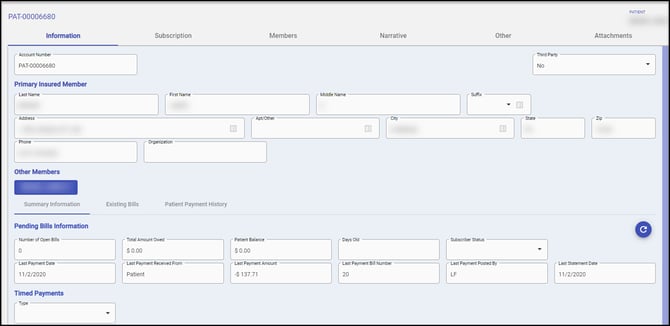
The Accounts Module automatically creates patient accounts following a patient lookup on a newly-created or newly-imported bill in the event that the patient is not an existing patient.
If utilizing the Subscription Module, the Account Number prefix can be assigned manually. Otherwise Patient Accounts will be assigned a prefix of 'PAT', followed by a unique account number. Any Members of that account will share that account number. This assignment takes place once the patient's first bill is saved.
Use the Organization Field if mailings should be to someone other than the listed name.
The Other Members lists all associated account members as entered in the Account Members Tab. The head of household member will always shown on the left-side of the list of other members with a * beside their name.
Statement Mailing Address
The mailing address is derived from the Account Information Tab.
Third Party Switch
The Third Party Switch controls how account information is updated in the Accounts Module from a new bill entered in the Billing Module.
If Yes is selected, then no information is updated from a new bill entered in the Billing Module.
If marked as Yes, the program prevents the Billing Module from updating the mailing address. This is used if the account is handled by someone other than the head of household.
If No is selected, then any differences in information for the new bill (after prompting) would be updated in the Account Module in the Insured Information Area of the Account Members Tab.
When billing for an existing patient, the Third Party status will be shown in the Billing Information tab for context.

Timed Payments
This section is used to set a Timed Payment for an account.
Setting the Timed Payment puts the account in a status signifying that it should be removed from collections activity and other reports and processes.
The Type Drop-Down box has three options: Flat Rate, No Timed Payments, and Percent of Total.
- Flat Rate uses the value as the amount to be paid.
- Percent of Total uses the value as the percent of the open balance to be paid.
- No Timed Payments turns off the Timed Payment Setting.
With a Timed Payment set, the amount (flat rate or percent) is populated in the Amount Due Field of a statement generated by the program. The Total Balance also shows on the statement.
Note: Enable Editing must be clicked before any changes can be made on an account.
A Timed Payment establishes the agreement that the patient is to pay a certain amount on a monthly basis. The Timed Payment makes use of statements to remind the patient of the amount due and the Total Amount Owed.
Note: Run the Active Timed Payments Accounts Report in the Pending Bills Category of the Billing Module to review accounts with Timed Payments. This report identifies how long ago the last payment was made.
The Last Cycle Aging Increment Value allows the program to continue to provide a statement, based on that number of days, when necessary, for an account that utilizes Timed Payments.
Accounts will be automatically removed from Timed Payments once the balance of the claim reaches $0.00.
Tracking Accounts with Timed Payments
Run the report (in the Pending Bills Reports Category of the Billing Module): Active Timed Payments Accounts
Hint: This report lists accounts with Timed Payments and shows the number of days since the last payment, which may influence whether warning letters should include those on Timed Payments.
Summary Information Tab

This area provides reference information, especially when talking to a patient or Insurance Company about various bills in the account.
Existing Bills Tab

Click the Existing Bills Tab to see details of Open, Closed, and Non-Printed/Rejected Bills. Details can be changed using the Type dropdown and the latest data can be viewed by clicking the refresh button on the right. Grand totals will also be present to the right of the Type dropdown. Click any Bill Number to be directed to that bill in the Billing Module.
Reject status bills are shown in the Non-Printed/Rejected Bills Type, and are highlighted in red for easy visibility.
Patient Payment History
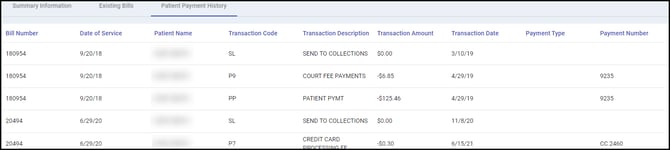
Billers can quickly ascertain details specific to patient-related transactions in the Patient Payment History tab. Clicking this section will open a new grid showing the following transactions posted to patient bills:
- Patient Payments/Adjustments (Transaction Codes: PP / AP)
- Collections Transactions (Transaction Codes: SL / UL)
- Refund Transactions (Transaction Codes: FP / UF)
- Write Off To Bad Debt (Transaction Code: WB)