![AIM Logo Final White RGB@2x.png]](https://3437204.hs-sites.com/hs-fs/hubfs/AIM%20Logo%20Final%20White%20RGB@2x.png?height=50&name=AIM%20Logo%20Final%20White%20RGB@2x.png)
Manage Attachment Files Utility
Attaching a file to a Bill or Account
Overview
The Manage Attachment Files utility stores supporting documents that can be linked to bills or accounts. This feature streamlines document management by allowing you to upload files once and link them to multiple records without downloading, navigating between modules, or manually attaching files.

Common documents stored in this utility include:
- Medical Necessity (PCS) for non-emergency runs
- Hospital Face Sheets
- EKG strips
- Dispatch Records
- Signature Authorization Forms
- Patient Care Reports
- EOB (Explanation of Benefits) documents
- Supporting documentation for claims processing
File Size Limitation
A scanned file should be no larger than 6 MB, as the process becomes significantly slower due to the large size.
Manage Attachment Files Utility
To access the utility, select the Utilities icon, Manage Attachment Files.

All Modules must be closed to access Manage Attachment Files. The system will notify you:
You can also access this utility from the Billing Module's Attachments Tab:

Filtering the Grid
Two filter fields appear side-by-side at the top of the grid:

Filter by Name
Search for files by filename. Begin typing the first few characters to narrow the list.
Filter by Recipient
Display only files assigned to a specific recipient type. Begin typing to search available recipient options.
Refresh Button
The Manage File Attachment grid can be refreshed by using the Refresh button at the top of the grid.

Grid Columns
The Manage Attachment Files grid displays the following information:
- Checkbox - Located in the leftmost position. Select one or more files for bulk actions. The checkbox in the column header acts as a Select All/Unselect All toggle.
- Name - Filename of the attached document
- Type - User-defined category describing the file type (e.g., EOB, Face Sheet, Judgment)
- Recipient - Designation assigned to the file. Column header is sortable.
- Creator - Username and timestamp of who uploaded the file
- Updater - Username and timestamp of who last modified the file
- Description - Additional notes about the file
- Actions - Available actions for each file (Link, Edit, Download, Delete)
Adding Files
Add Single File
Click the Add button at the top of the grid to upload a single file.

After clicking Add, a form will appear to create your attachment.
Fields:
- Type - Select or create a file type category (based on Quick Pick Setup, Attachment File Types).
- Recipient - Dropdown field located below Type and above Description. Select a recipient designation from the available options (based on Quick Pick Setup, Recipient). Click the Quick Pick button on the far right to add or manage recipient types via the Recipient Quick Pick modal.

- Description - Optional field for additional context about the file
- Notes - Optional field for internal notes
- File Upload - Drag and drop a file or click to browse
The Name field automatically populates with the filename, but can be edited if needed.
Adding Multiple Files

Users can also use the 'Add Multiple' button to add multiple attachments at once.
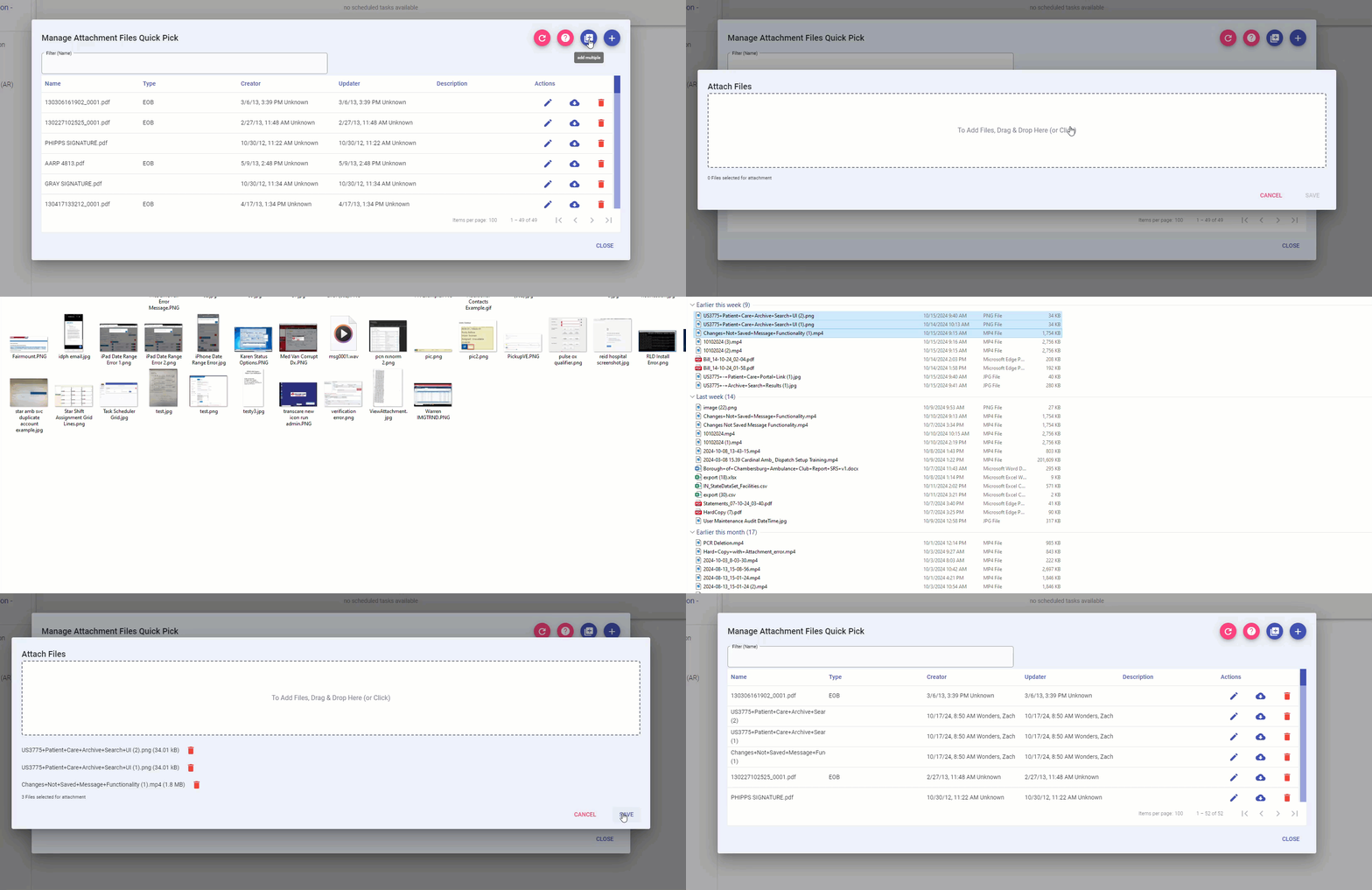
Note: When using bulk upload, you cannot edit properties (Type, Recipient, Description) during the upload process. Edit individual files afterward if needed, or upload files one at a time to set properties during upload.
Simply select all the files you'd like to attach in the grid, and they will become available in the Manage File Attachment queue. You are unable to edit properties for these attachments while they are being attached, however, so it is recommended to edit individual attachments afterwards if needed (or attach one-by-one, which allows for these extra properties to be entered during the attachment process).
Selecting Files
Check the box in the leftmost column to select one or more files. Use the checkbox in the column header to select or deselect all files.
When files are selected, bulk action buttons become enabled.

Bulk Actions
Bulk action buttons appear above the Actions column. These buttons are disabled by default and become enabled when one or more files are selected via checkboxes.
Link Selected Files
Located to the left of "Download All" button. Links all selected files to one or more bills or accounts. Button displays chain/link icon (🔗) and text "Link Selected Files". Button is disabled when no files are selected and becomes enabled when one or more files are selected via checkboxes. See Linking Files to Bills and Accounts section for detailed workflow.
Download All
Downloads all selected files to your local drive as a zip file.
Filename Format: <Agency name>_<DateTime (MMddyyyyhhmm)>_Attachment.zip
Example: Agency_123020251430_Attachment.zip
Delete All
Removes all selected files from the system. A confirmation dialog appears before deletion.
Confirmation Message: "This will permanently delete all selected attachment(s)."
- Yes - Deletes selected files
- No - Cancels deletion and returns to grid
Individual File Actions
Each file has action buttons in the Actions column.

Note: When one or more files are selected via checkboxes, the Edit, Download, and Delete buttons are disabled for individual files. These buttons re-enable when all checkboxes are unchecked.
Link (🔗)
First action button in the Actions column, appearing before Edit, Download, and Delete buttons. Links the file to one or more bills or accounts. Button tooltip displays "Link to Bill/Account". See Linking Files to Bills and Accounts section for detailed workflow.
Edit (✏️)
Updates the file's Name, Type, Recipient, Description, or Notes.
Download (☁️)
Downloads the file to your local drive.
Delete (🗑️)
Removes the file from the system. A confirmation dialog appears before deletion.
Linking Files to Bills and Accounts
Files can be linked directly to bills or accounts without leaving the Manage Attachment Files utility. This eliminates the need to download files, navigate to bills/accounts, and manually attach documents.
Opening the Link Attachment Screen
Individual File: Click the Link (🔗) button in the Actions column for any file.
Multiple Files: Select files using checkboxes, then click Link Selected Files in the bulk actions toolbar. The modal shows the number of selected files with an expandable/collapsible display of full filenames (e.g., "3 files selected: file1.pdf, file2.pdf, file3.pdf").
Link Attachment Screen

The modal displays:
- Header - Shows "Link Attachment" (single file) or "Link Attachments" (multiple files)
- File Information - Lists the file(s) being linked
- Tabs - Choose between Link to Bill or Link to Account
Linking to Bills
- Ensure the Link to Bill tab is selected (active by default)
- Enter a complete bill number in the Search by Bill Number field
- Click the Search button to display results
- Review search results showing: Bill number, Patient name, Date of Service (DOS), Amount
- Click on a bill from the results list to select it (highlighted in blue). Only one bill can be selected at a time.
- Click the Link to Bill button to create the link (disabled until a bill is selected)
- The linked bill displays with a green background and ✓ Linked indicator
- The Link to Bill button is disabled for bills where the attachment is already linked
- Clear the search field and search for another bill number to link the same file(s) to additional bills
- Click Close when finished
Note: Search functionality uses the same logic as the Billing Module search.
Linking to Accounts
- Click the Link to Account tab (the button label changes from "Link to Bill" to "Link to Account")
- Enter a complete account number in the Search by Account Number field
- Click the Search button to display results
- Review search results showing: Account number, Patient name
- Click on an account from the results list to select it (highlighted in blue). Only one account can be selected at a time.
- Click the Link to Account button to create the link (disabled until an account is selected)
- The linked account displays with a green background and ✓ Linked indicator
- The Link to Account button is disabled for accounts where the attachment is already linked
- Clear the search field and search for another account number to link the same file(s) to additional accounts
- Click Close when finished
Note: Search functionality uses the same logic as the Accounts Module search.
Sequential Linking
The Link modal remains open after creating a link, allowing you to search and link to additional bills or accounts without reopening the modal. This is useful when one file needs to be associated with multiple records.
The ✓ Linked indicator shows which bills/accounts have already been linked during the current session. The Link to Bill or Link to Account button is automatically disabled for records where the selected attachment(s) are already linked, preventing duplicate links.
Important Notes
- Files remain in the utility after linking - Unlike previous functionality, files are NOT automatically removed when linked to bills or accounts. Files remain available in the Manage Attachment Files grid for future use. Downloading files will prompt for deletion, though.
- Link status not displayed in grid - The main grid does not show which bills/accounts a file is linked to. Link indicators only appear within the Link modal during active linking sessions.
- Multiple links supported - A single file can be linked to multiple bills, multiple accounts, or both.