![AIM Logo Final White RGB@2x.png]](https://3437204.hs-sites.com/hs-fs/hubfs/AIM%20Logo%20Final%20White%20RGB@2x.png?height=50&name=AIM%20Logo%20Final%20White%20RGB@2x.png)
Since there are a wide variety of configuration settings inside of Patient Care Setup's Configuration Switches Setup, you can use any of the links below to navigate directly to the section you're interested in:
Certification Expiration Notifications
Patient Care Numbering
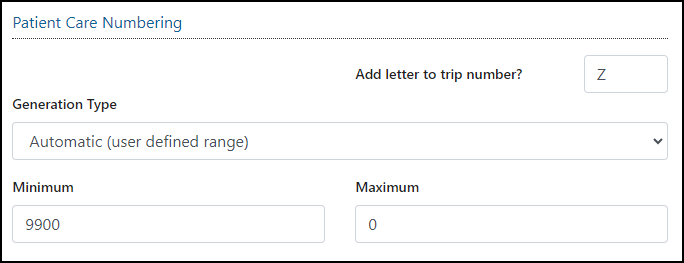
The Patient Number is the main identification number of a record in the ePCR and Billing Modules of The AIM System. A Patient Number is an eleven-digit number (with an optional, manually-entered, alpha at the end). Unlike the other automatic numbering switches, the Maximum Patient Number cannot be more than eleven 9’s (as in, 99999999999).
Patient Care Numbers are important for the Billing Module. Always involve management and billers in decisions related to numbering to avoid confusion.
Add letter to trip number? allow a single alpha-suffix character to be saved in either the minimum or maximum fields whenever the Generation Type field equals Automatic (user defined range).
Automatic Trip Numbering allows the program to auto-generate a Patient Care Number (Trip Number) sequence for each new PCR entered into the ePCR Module of the AIM System.
There are three selections for Patient Care Numbering:
- Automatic (user defined range): Generates a sequence of numbers, beginning with the Minimum Value and ending with the Maximum Value entered below the drop-down. This is recommended when PCR data is posted to the Billing Module of the AIM System.
- Manual: the Patient Care Number Field is left blank for a user to enter this identifier.
- Sync with Dispatch Numbering Sequence: Syncs the ePCR trip numbering sequence with the Dispatch trip numbering sequence. Not recommended unless some types of transports do not go through Dispatch.
If the Automatic (user defined range) is selected, the numbers begin with the Minimum Trip Number Value entered and run out with the number in the Maximum Trip Number Value. Either automatic option provides for a unique number for each PCR. These can then be populated to the Incident and Response Numbers.
For the Patient Care Number, The AIM System handles up to 11 digits, plus an alpha character (the alpha character CANNOT be included in the Value Range - use the 'Add Letter to Trip Number' option).
Leading zeroes are not required. If entering 100, enter 100, not 00000000100.
Determine the number of transports expected in a year and allow for unexpected increases or situations by providing a Maximum Value of all 9’s for that amount. For example, if 1000 PCRs are expected in a year, it is best to have up to five digits for the Trip Number Range (zero for the Minimum and 9999 for the Maximum).
The message “Auto generated max number 0 = unlimited” means that entering zero (0) in the Maximum Number Field does not limit the Automatic Numbering for that identifier.
When determining a value range, the best practice is to determine the number of runs expected in a year, and then allow for unexpected increases. For example, if 1000 runs are expected in a year, it is best to have up to five digits for the Number Range (zero for the Minimum and 9999 for the Maximum).
Numbering can also indicate the year of the run. While this is handled by the Incident Date and/or Date of Service Fields, and reports provide date ranges, providing this reference makes it easier to identify when each run occurred.
It should not be expected that every sequential identification number exists or is valid. Calls can be started with an identification number, but not saved (or later deleted), which causes gaps. Keep in mind that a missing number does not necessarily mean missing calls.
Incident Numbering
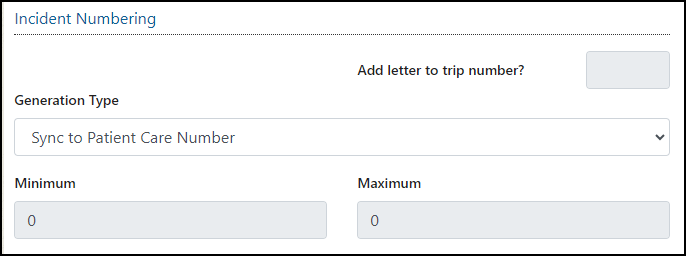
The Incident Number is the main identification for any call in the Dispatch Module.
There are four selections available:
- Automatic (user defined range): Generates a sequence of numbers, beginning with the Minimum Value and ending with the Maximum Value entered below the drop-down. This is recommended when PCR data is posted to the Billing Module of the AIM System.
- Manual: the Patient Care Number Field is left blank for a user to enter this identifier.
- Sync with Patient Care Number (only available for customers with both AIM Dispatch and AIM ePCR): automatically aligns the current trip numbering sequence in Dispatch, allow for the trip number sequence to still be ordered correctly while call is not being dispatched to the PCR author. With the Sync to Patient Care Number Switch, the Incident Number populates as the Patient Care Number.
- Sync with Dispatch Numbering Sequence: Syncs the ePCR trip numbering sequence with the Dispatch trip numbering sequence. Not recommended unless some types of transports do not go through Dispatch.
Response Numbering
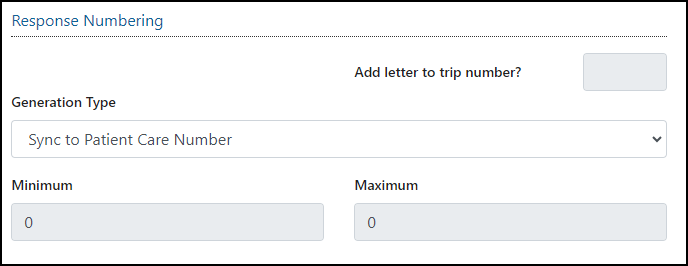
The Response Number is an optional identification for calls in the Dispatch Module.
There are four selections available:
- Automatic (user defined range): Generates a sequence of numbers, beginning with the Minimum Value and ending with the Maximum Value entered below the drop-down. This is recommended when PCR data is posted to the Billing Module of the AIM System.
- Manual: the Patient Care Number Field is left blank for a user to enter this identifier.
- Sync with Patient Care Number (only available for customers with both AIM Dispatch and AIM ePCR): automatically aligns the current trip numbering sequence in Dispatch, allow for the trip number sequence to still be ordered correctly while call is not being dispatched to the PCR author. With the Sync to Patient Care Number Switch, the Response Number populates the number generated for the Patient Care Number.
- Sync with Dispatch Numbering Sequence: Syncs the ePCR trip numbering sequence with the Dispatch trip numbering sequence. Not recommended unless some types of transports do not go through Dispatch.
Automatic Trip Numbering on Remote Units
All Remote Units use the trip number range established in AIM Online. The generation of a new trip number has been tested to the hundredth of a second.
Without Automatic Trip Numbering
A trip number entered manually on a Remote Unit is maintained on the Command, unless it duplicates an existing trip number.
Setting automatic trip numbers controls the range of trip numbers on all Remote Units and helps to prevent issues with duplicate trip numbers.
If Trip Numbers are generated outside the program (by a Call Center, other Dispatch program, The AIM System Dispatch Module, etc.), this feature should not be used.
The Patient Care Numbers identify PCRs/claims in the Billing Module of The AIM System. Always involve management and billers in decisions related to these numbers to avoid confusion.
It should not be expected that every sequential number is recorded or valid in The AIM System, as it is probable that some PCRs are started, but not saved, due to various circumstances.
Service Date Mapping
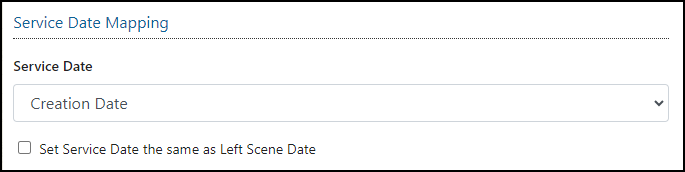
Service Date allows for the Service Date to be automatically populated on patient care reports. It can either be set to be Blank at the time of the PCR's creation, or the Date of Service field can be automatically populated Creation Date
Set Service Date the same as Left Scene Date if enabled, when a Left Scene Date is added, system automatically updates the Service Date to the Left Scene Date entered. If not Left Scene Date is etnered, then the Service Date will be used.
Posting Options
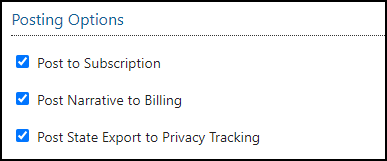
Post to Subscripiton will post to Subscription.
Post Narrative to Billing will post the Narrative to Billing.
Post State Export to Privacy Tracking will post State Export to Privacy Tracking.
QA Options
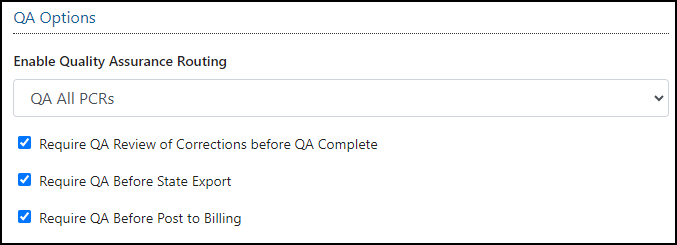
Enable Quality Assurance Routing can be configured one of three ways:
- Use Review Workflow Setup: If a PCR matches the criteria in Review Workflow Setup, that PCR moves to an In Review status. If not, it moves to a Finished status when completed.
- QA All PCRs: If a PCR is completed, it moves to an In Review status, without taking Review Workflow Setup into account.
- No QA: PCRs will not move to a QA status when finished if this option is selected, ignoring if Require QA Before State Export and/or Require QA Before Post to Billing are selected. If a PCR is completed, it moves to a Finished status.
Require QA Review of Corrections before QA Complete: when enabled, all Patient Care records that are marked as Finished will go to QA before posting to Billing.
Require QA Before State Export: when enabled, determines if a PCR should go into QA Review after completion.
Require QA Before Post to Billing: when enabled, determines if a PCR should go into QA Review after completion.
Certification Expiration Notifications
Expiring certifications, licensures, national registry, and drivers licenses are shown in the Dashboard's PCR Management section and the Patient Care Portal. These settings control when and to whom they show:
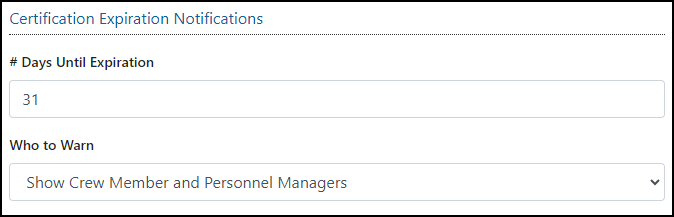
# Days Until Expiration: the number of days until expires.
Who to Warn has two options:
- Show Crew Member: defined as a single user that has an expired certification date in the General Setup, Personnel Setup, Licensures section, Expiration Date field. If this option is enabled, then the notification will only be viewed by that individual user with the expiration.
- Show Crew Member and Personnel Managers: defined as a single user plus mangers that need alerted to expiration for all personnel. If this option is enabled, then the notification will be viewable by the individual user with the expiration PLUS any users that have access to Personnel Setup.
"Crew Members" are considered to have only the "View" permission in Roles Setup.
"Personnel Managers" are considered to be users who have the "View All" permission in Roles Setup.
Auto Fax
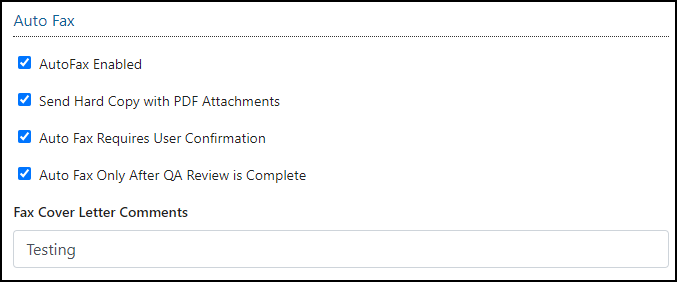
- AutoFax can only be enabled by AIM Support.
- Send Hard Copy with PDF Attachments if enabled, the Hard Copy with PDF Attachments will be AutoFaxed instead of the normal Hard Copy Report.
- Auto Fax Requires User Confirmation will prompt users to fax the records to the receiving facility instead of being automatically sent.
- Auto Fax Only After QA Review is Complete if enabled, the Auto Fax function will not prompt or automatically send the fax when the PCR is completed. It will only prompt or automatically send once the Complete QA or Complete QA with Feedback buttons are used in the PCR's Review Page.
- Fax Cover Letter Comments allows comments to be added to the Fax Cover Letter.
Other Options

- Enable Default of Response Urgency from Response Mode to Scene if checked, data entered in the Response Mode to Scene Field/Call Information Tab populates in the Response Urgency Field in the Billing Information Tab.
- Enable “Treatment Performed By” to populate from Crew Role if checked, the crew selected as Primary Patient Caregiver is populated as the crew performing treatments entered in the Medications/Procedures Grid of the Treatments Tab.
- Make Notes Mandatory for Trips Previously Marked Finished if checked, this forces data entry Trips Notes to be able to continue with editing a finished PCR.
- Disable and Hide No Patient Button if checked, the No Patient button will no longer appear or be an available option.
- Disable Assessments A/NP Quick Check if checked, the user will no longer have the option of using the quick check feature on the Exams area.
- Edit Original Narrative if checked, the user can make any wanted changes to the original narrative after a trip has been finished. Any changes to the Narrative will be sent to the State.
- Exclude Attachments from State Export if checked, files attached in the Attachments Section will not be sent with the XML state export.
- For customers in the state of Virginia, the hard copy report is still sent to the state at the time of state submission, even if this setting is enabled.
- Disable Shift Assignment Prompt if checked, the prompt that occurs when navigating to the Patient Care Portal from the Dashboard will no longer appear.
- Require Narrative Template if checked, the narrative text box is hidden until a Narrative template is selected.
- Disable Page-to-Page Validations if checked, the Page/Tab Menu Mandatory Icons will not display, the Validations refresh when navigating to a new page/tab will not occur and the Validation Errors section will appear after the page reloads from the validation screen.
- Add Attachments to Finished Trips if checked, the Documentation Page, Other Tab, Attachment Section is available for use, even if the Patient Care Report is in a ‘Finished’ status.
- Add Notes to Finished Trips if checked, the Notes Tab, will be enabled on PCR’s in a Review/Reviewed/Closed status for anyone viewing that PCR.
- Automatic PCR Notification for Incomplete PCRs if checked, all PCR’s that are in an incomplete status will automatically trigger a notification for the PCR’s creator.
- Disable and Hide Camera Attachment Button if checked, the Camera button will not appear and not be able to be used in the Documentation Page, Other Tab, Attachments Section.
- Disable Use Incident Location Button if checked, disables the Use Incident Location Button on the Patient Tab.
- Require All Crew Signatures if checked, the system will require a crew signature for each crew listed on the Crew Tab.
Remote Link Options
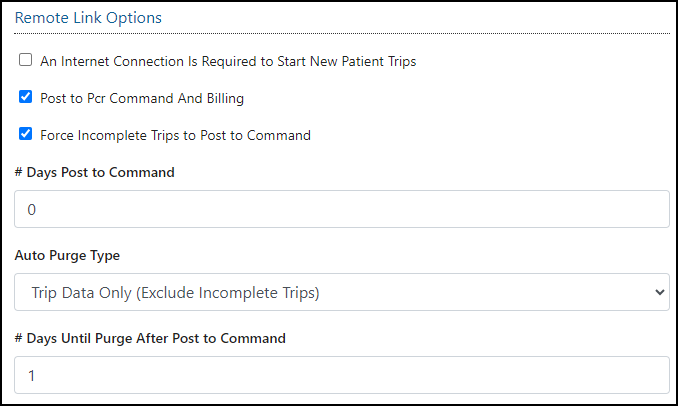
An Internet Connection is Required to Start New Patient Trips: if enabled, creation of new patient accounts is disabled unless an internet connection is available. This is recommended to prevent crew members from creating duplicate patient accounts since they cannot access the full patient account database while offline.
Post to Pcr Command and Billing: if enabled, reports will post both to command and billing once completed if connected (or synchronized if not connected), if no QA Review process prevents this workflow.
Force Incomplete Trips to Post to Command: if enabled, moves all incomplete PCRs from the device to Command so that they can be completed in a centralized location instead of only on that specific remote link device. RECOMMENDED in all circumstances.
# Days Post to Command: if 0 is entered, then this allows for incomplete trips to be posted to command immediately. This is typically recommended in all circumstances, unless crew will always have access to that remote link device uninhibited.
Auto Purge Type has five options:
- Account and Trip Date (Excludes Incomplete Trips)
- Account and Trip Date (Include Incomplete Trips)
- Off
- Trip Data Only (Exclude Incomplete Trips)
- Trip Data Only (Include Incomplete Trips)
# Days Until Purge After Post to Command: configures the frequency in which records are purged after posting to command. Only functions if Auto Purge is enabled.