![AIM Logo Final White RGB@2x.png]](https://3437204.hs-sites.com/hs-fs/hubfs/AIM%20Logo%20Final%20White%20RGB@2x.png?height=50&name=AIM%20Logo%20Final%20White%20RGB@2x.png)
The Connect to Retrieve Reports Option can be used to download files (999 and 277 files) for a specific Payer. Appropriate buttons are activated by the selection of the file.
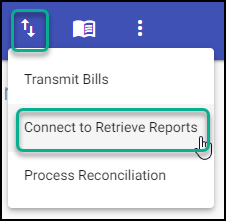
Accessed from the electronic transmissions icon, Connect to Retrieve Reports option.
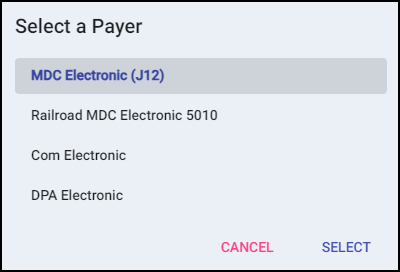
Select the payer for the files to be seen.
Select the file to download by clicking the file name, then click the Active Button on the left. The program identifies the file and only provides the available button's regarding the selected file.
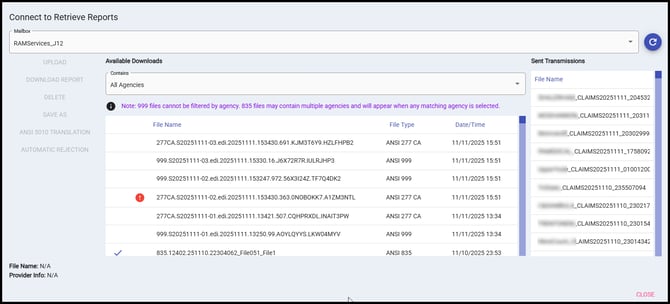
Mailbox: Displays available mailboxes.
Refresh: Refresh available files for Available Downloads and Sent Transmissions.
Contains: Used to filter files to specific agencies. Only appears for users who are submitting for multiple agencies.
Filtering options when connecting to retrieve reports for multiple agencies are limited. 999 reports cannot be filtered by agencies. Anytime a value other than 'All Agencies' is selected for the Contains dropdown, all 999 files are automatically filtered-out of the grid below. In addition, 835 files may contain multiple agencies, so those agencies would end up being included in the results even when filtering to a different agency.
Upload: Only available if files has not been uploaded. When selected, it will send the file to the appropriate third party processor.
Download Report: Print or preview the Report to make sure the claims are accepted.
Delete: Remove files manually from the list. Automatic removal of files happens after 45 days from the day they appear, as shown in the Date/Time column.
Save As: Enabled for 835 files, allowing the file to be saved to a local machine.
ANSI 5010 Translation: See ANSI 5010 Translation Guide for further details.
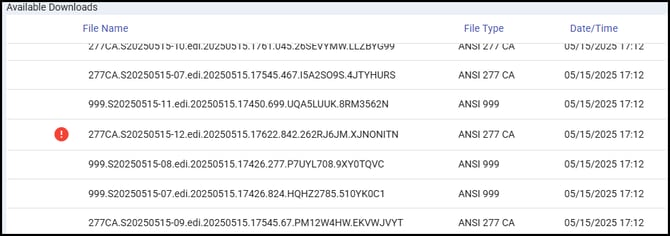
Files with rejections will be shown with the red exclamation mark icon (shown above). Review these files with AIM Support if needed to understand the reason for the rejection and the next steps.
Automatic Rejection: Automatically rejects the bill(s) associated with this 277 rejection file. Only available after downloading and reviewing the 277 report itself. When used:
- Rejected bills are automatically updated to a Rejected status and routed to that user for correction. All bills that aren't rejected are kept in a transmit / no payment status to await payment processing.
- Payment Number column for the rejection transaction of the bill(s) will contain a hyperlink to download the 277 report again if needed.
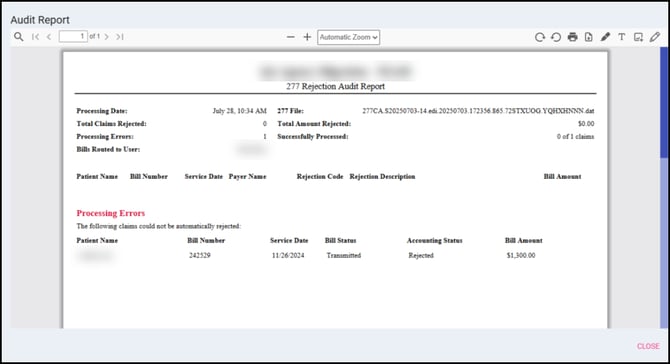
- An Audit report will download providing details on the rejected bills including Processing Date, 277 File Name, Total Claims Rejected, Total Amount Rejected, Processing Errors (if one or more bills could not be rejected), Successfully Processed, and the Bills Routed To User. This will also note details on each rejection contained in that file: Patient Name, Bill Number, Service Date, Payer Name, Rejection Code & Description, and Bill Amount.
- Details for this processed rejection will be collected for analysis using the Denial and Rejection Report/Queue.
If one or more bills cannot be rejected, the 277 Rejection Audit Report will indicate these as "Processing Errors". These require manual rejection and manual correction, most likely due to a bad bill status.
Available Files: Files that have been returned from the payer and are available for processing. The file name and Provider Info will be listed below based off the selection.
Sent Transmissions: Files that have been sent to the payer for processing.
Reviewing Confirmation Reports
- 999 File The first level of edit checks occurs is in the door and usually looks for missing data on the transmitted claims. All three lines must have a 1 to show that the file was accepted.
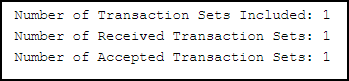
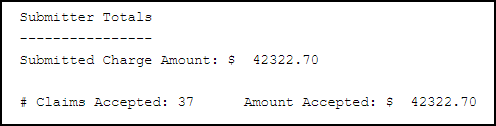
- 277 File The second level of edit checks details each claim received and shows each individual claim as accepted or rejected. Only rejected claims identified on the 277 file need to be corrected and resubmitted. A summary of totals is provided at the end of the report.