![AIM Logo Final White RGB@2x.png]](https://3437204.hs-sites.com/hs-fs/hubfs/AIM%20Logo%20Final%20White%20RGB@2x.png?height=50&name=AIM%20Logo%20Final%20White%20RGB@2x.png)
The Statements & Aging Setup can be used to set up when and how statements are sent. It can be used to set up the wording for warning letters and when a warning letter should be sent as well as what can be aged.
- A statement is a reminder sent to a patient (or other payer) that unpaid balances exist on an account. Statements can only be created after a bill/invoice was sent to a payer. Statements are Account related and are not specific to a bill number.
- A warning letter is the final notice sent to a patient, indicating that if arrangements are not made, any outstanding balances are to be provided to a Collection Agency.
- Aging adds a fee to an open balance when it hits a cycle and the aging process is run. Charging this fee must be explained, and must be verified as legal with local/state regulations. Aging should never be processed unless/until notifying the patient/payers.
This area is divided into four areas: Settings, Warning Letter, Cycle Definitions, and Payer Configurations.
Statements Settings

- Print Statements on Blank Paper is a drop-down box with Yes and No options. Selecting
Yes; the program prints statements on normal paper from the printer. If No, the format is for pre-printed forms, which likely have a company logo and headers to explain the data.
-
Print Subscribers Statements is a drop-down box with All, Subscribers Only, and Non-Subscribers Only options. These selections will print statements for the selected option.
- All: The Subscriber Status does not affect the specific process
- Subscribers Only: The specific process only includes Bills/Accounts with the Subscriber Status.
- Non-Subscribers Only: The specific process only includes Bills/Accounts with the Non-Subscriber Status.
-
Sort Statements/Warning Letters By is a drop-down box with Account Name, Account Number, Zip Code, and None options. These selections will choose how the statements and warning letters are sorted when they are printed.
-
Print Offset Transactions is a drop-down box with Yes and No options. These selections will choose whether an offset transaction will be printed ( should be set to No unless Offsets are wanted on an On-Demand Statement).
-
Print Statement Transactions is a drop-down box with Yes and No options. These selections will choose whether a transaction will be printed. Printing these Transactions makes statements longer, and may be unnecessary if the patient has an ongoing arrangement to make payments.
-
Method of Deriving Cycles is a drop-down box with the date of Service and Use Date Billed options. This selection controls how cycles are calculated. The driving factor is the delay between the dates of service and when a bill is sent, because sending a reminder too soon may not be effective.
- Date of Service provides a definite reference to when the cycles begin, but if the Bill/Invoice is delayed, the first statement generated may be sent too soon.
- Use Date Billed is the best practice, timing statements when a bill is sent, which avoids inconsistencies with the first statement generated.
An account will be ready for a statement based on the date of service or the date billed - the system does not factor the time into deriving which statements are ready to print.
- Service Date to Start Aging is the date in which you would like aging to start.
- Last Cycle Aging Increment is the days between cycles after all cycles on the Cycle Definitions Grid are met. This should correspond to the Cycle Definitions Grid, especially for Timed Payments.
- Last Cycle Aging Type sets aging, after all Cycle Definitions are met. Flat Rate or Percent for a percentage of the total. Aging adds a charge to the unpaid balance of a bill.
- Last Cycle Aging Amount sets the aging amount after all cycle definitions are met. The amount entered here is what is charged to the bill if the balance remains unpaid.
-
Aging only adds an amount from one cycle when run with Age Missed Cycles set as No. If amounts from missed cycles are to be applied, this must be changed to Yes
-
If subscribers should be aged, set Age Subscribers to Yes. If not, keep this marked as No.
- Skip Aging for Current Cycle Payments allows bills to not be aged if a payment is made to that bill within the current statement and aging cycle.
It is legally important to know if Aging (adding a charge to a Patient Bill) is allowed.
Alerting patients, with signature authorization forms, bills, statements and likely a separate letter, must be done before charging this fee to an unpaid balance.
Note: Warning Letters, Aging and Sending Balances to a Collections Agency are features of The AIM System, but should never be processed without knowing the laws that affect billing customers (patients) and charging fees for services provided by the company.
There are likely local, state, and federal regulations on charging patients, explaining/warning them of charges and/or sending amounts owed to a third party for collection purposes. None of these functions should be done without full understanding of a company’s ability and obligations with these actions.
Warning Letter Settings

Warning letters are meant to be the last message to the patient before the last cycle of Cycle Definitions Grid is met. This is the final warning before the balance is sent to a collection agency or collection process.
Warning Letter Settings For Last Defined Cycle indicates when Warning Letters or Statements will be produced for the last defined cycle:
- No Warning Letters/Statements Only
- Timed Payment Accounts
- Would not get Warning Letters
- Would get Statements
- Non-Timed Payment Accounts
- Would not get Warning Letters
- Would get Statements
- Timed Payment Accounts
- All Accounts, Including Timed Payment Accounts
- Timed Payment Accounts
- Would get Warning Letters
- Would not get Statements
- Non-Timed Payment Accounts
- Would get Warning Letters
- Would not get Statements
- Timed Payment Accounts
- All Accounts, Except Timed Payment Accounts
- Timed Payment Accounts
- Would not get Warning Letters
- Would get Statements
- Non-Timed Payment Accounts
- Would get Warning Letters
- Would not get Statements
- Timed Payment Accounts
Auto Place Bill On-Hold will automatically place the bill on hold after a Warning Letter is printed.
Auto Assign to User After Warning Letter Printed will allow a Route to be created to a specific user with action and amount of days from the printed date.
Warning Letter Content box allows the user to customize their warning letters to the company and what the warning letter says.
Cycle Definitions

Cycles are the way The AIM System controls the functions of both Statements and Aging. These cycles are configurable, allowing for any length in the Days Old Column, and provides Comment 1 and Comment 2 Columns to focus messages sent on statements.
Cycles should be changed per company policy. Cycles affect how statements and related reports are run, and provide selections on prompts for each Cycle Definitions Entry that exists.
- Cycle Number box displays what cycle it is, this box is read-only.
-
The Days Old Column sets the cycle’s time frame, and should balance too few/too many statements. Should the patient/payer receive monthly statements (recommended) or should these be sent more or less often?
-
Aging for the cycle is based on the data entered in the Aging Type and Aging Amount Columns. Aging Type is either Flat, which is a set amount, or Percentage, which is calculated from the current, open balance of the bill. Aging Amount provides the value of the fee charged when accounts are aged.
-
The Comment 1 and Comment 2 Columns allow for customizing Notes printed on statements based on the cycle met. These messages should be different for each cycle; perhaps more pleasant messages should be used early on, but then stress that fees, collection activity or other actions may be taken if arrangements are not made.
Personalized notes can be sent on a statement based on Statement Comments entered on the Accounts Module, Other Tab. Any notes entered on an account override the comments entered here.
Additional Cycles can be added to the cycle definition section by clicking on the add button. The add button will add another line for the next cycle.
When new cycles are added, all cycles are immediately sorted by the Days Old Column. All other fields and options remain as expected.
Cycles can be deleted by clicking on the trash can.
Payer Configurations
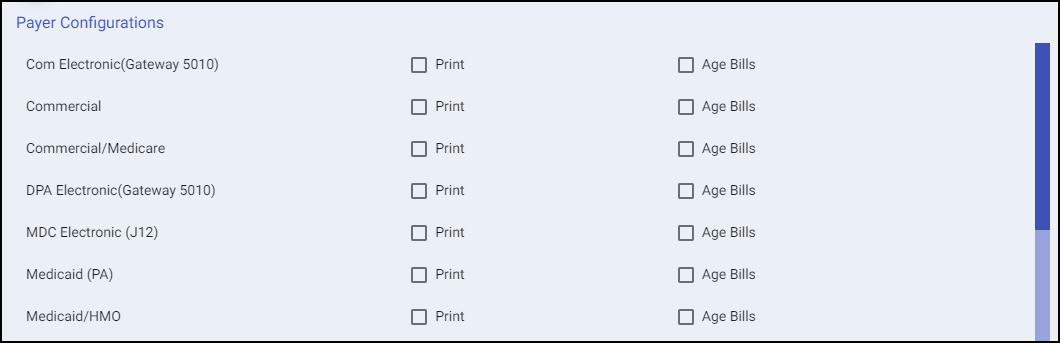
This grid provides the payers to be included when generating statements.
Payer Configurations section will allow the user to choose what insurance gets statements to send out and what payers will be aged when the age bill action is run.
Statements should only be sent to Patients, but other payer options can be chosen.
The patient is the expected selection. Statements are generated for every current, unpaid bill of the selected payer types. Contracts and other facility arrangements can make other selections (such as Commercial) useful, but keep in mind that there are no expectations that statements are acceptable with all payer types, and there may be legal issues with demanding additional fees from payers.