![AIM Logo Final White RGB@2x.png]](https://3437204.hs-sites.com/hs-fs/hubfs/AIM%20Logo%20Final%20White%20RGB@2x.png?height=50&name=AIM%20Logo%20Final%20White%20RGB@2x.png)
The Task Scheduler Grid Audit Report tracks when files from scheduled tasks (bills, statements, and warning letters) were downloaded from the Task Scheduler Grid. This report helps you verify whether a file was accessed, identify who downloaded it, and troubleshoot workflow issues when tasks aren't being processed.
Running the Report
Navigate to Billing > Miscellaneous Reports and select Task Scheduler Grid Audit Report.
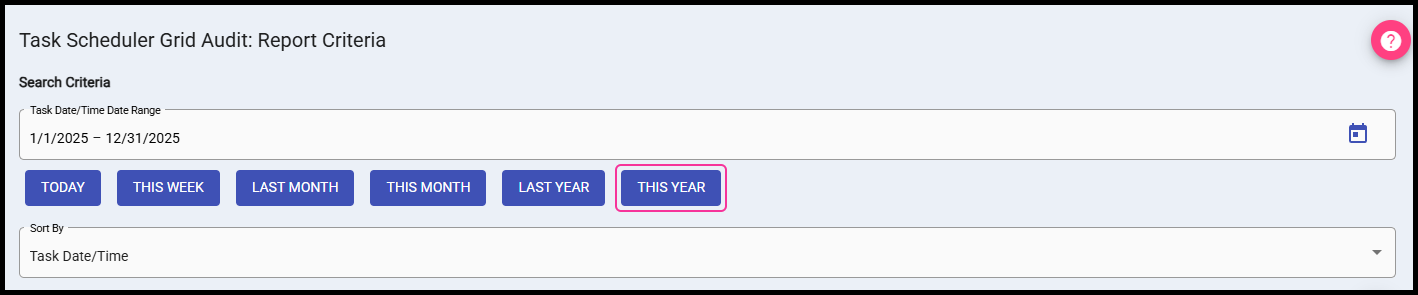
Configure the report using a Task Date/Time date range, which filters based on when the scheduled task fired (not when the file was downloaded). Use the date range field directly or select from quick options like TODAY, THIS WEEK, LAST MONTH, THIS MONTH, LAST YEAR, or THIS YEAR.
You can sort the report by Task Date/Time (default), Task Type, Payer Type, Form Type, Download Date/Time, or Download User. Additional filters let you narrow results to specific task types, payer types, form types, download dates, or users.
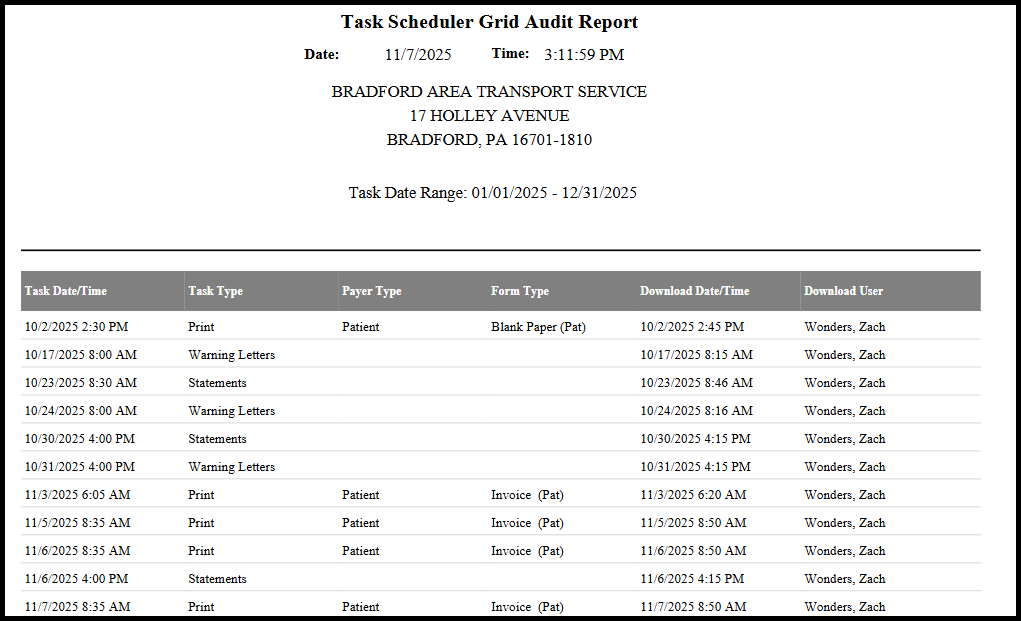
The report shows when each scheduled task fired (Task Date/Time), what type of task it was (Task Type - Bills, Statements, or Warning Letters), the associated Payer Type (Patient, Commercial, Medicare, Medicaid, etc.), and the Form Type used (1500, Invoice, Blank, etc.).
Note: Statements & Warning Letters do not have an associated Payer/Form Type.
Most importantly, the report displays the Download Date/Time and Download User (Last Name, First Name) for files that were retrieved from the Task Scheduler Grid. If these fields are empty, the scheduled task completed and created a file, but no one has downloaded it yet. This helps identify files waiting to be processed or tasks that may have been overlooked.
The report footer shows the total count of scheduled tasks included in the results.
Common Uses
Use this report to verify files were downloaded within expected timeframes, identify who accessed specific files for troubleshooting purposes, find unprocessed tasks that need attention, or monitor workflow patterns across your billing team. The report provides an audit trail for file access and helps ensure scheduled tasks are being completed efficiently.