![AIM Logo Final White RGB@2x.png]](https://3437204.hs-sites.com/hs-fs/hubfs/AIM%20Logo%20Final%20White%20RGB@2x.png?height=50&name=AIM%20Logo%20Final%20White%20RGB@2x.png)
Explanation of Benefits (EOB's) often contain multiple patients on one EOB. This utility can be used to store EOB's that are not specific to an individual bill or account.
In order to access the Mange EOB files, all modules must be closed.
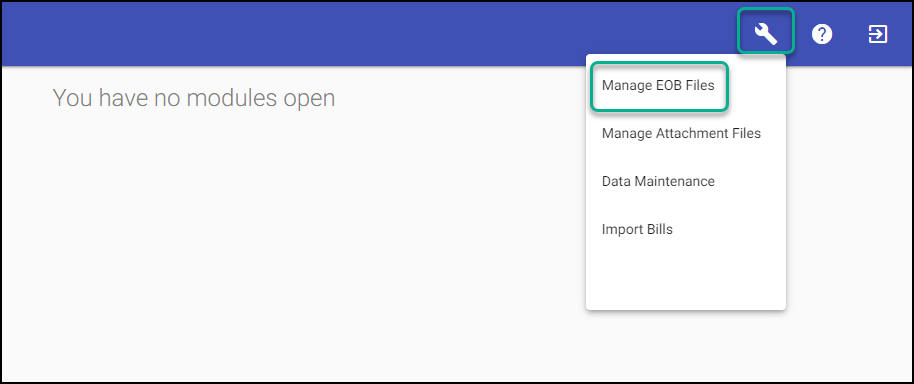
A list of EOB's will display in the grid with options to add additional EOB's or edit, download or delete existing.
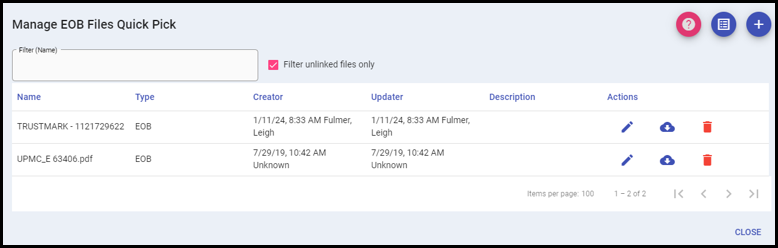
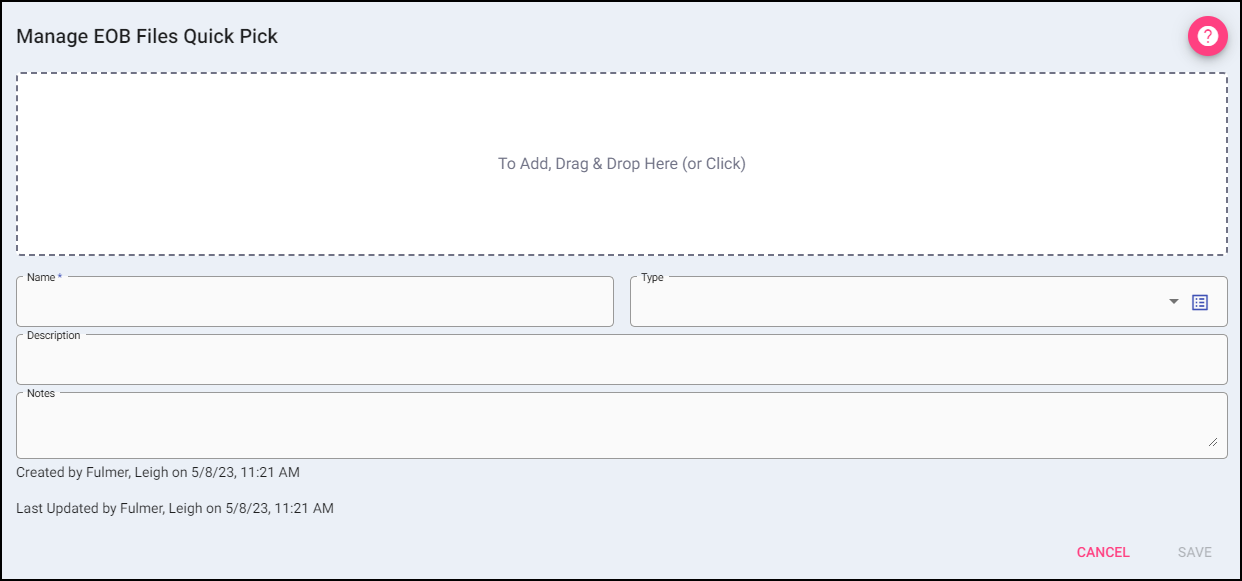
Add: A new EOB can be added to the list using the plus button on the top right.
When Add is selected, it opens the dialog for adding a new EOB, including Name, Type, Description and Notes. Once all information is entered, select Save to add the file to the grid.
Selecting Cancel will take the user back to the Manage EOB Files Quick Pick without adding a new file.
Manage Attachment Files Quick Pick: Files can be added from the Manage Attachment Files Utility directly to the Manage EOB Files list. This can save time by not having to download the files to your local machine and then reattach to the utility.
Filter: To narrow the results of a list, begin typing the city you are searching for.

Filter unlinked files only: Checked this box will have the above filter only show available files that have not already been linked to a transaction previously.

Actions:
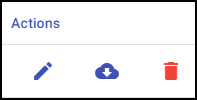
Edit: If changes need to be made to an entry, use the edit button.
Download: If you want to view the PDF of the file, select download.
Delete: Remove an existing entry.
If an EOB is deleted, it will no longer be available for linking to a transaction or display if previously linked.
After storing an EOB, it can then be linked when posting a transaction from the Billing or Accounts Module.