![AIM Logo Final White RGB@2x.png]](https://3437204.hs-sites.com/hs-fs/hubfs/AIM%20Logo%20Final%20White%20RGB@2x.png?height=50&name=AIM%20Logo%20Final%20White%20RGB@2x.png)

Routing is for follow-up purposes or other reasons (as noted by the Action and Sub-Action fields). Additional instructions can be provided in the Comments field.
To route a bill:
- Select the Add button
- Select a user from the Assign To field
- If the agency has an associated AIM ePCR system, "AIM ePCR Review" will be shown in the Assign To field.

- Select "AIM ePCR Review" to route the patient care report itself back to the QA process in AIM ePCR.
- The fields will change if this is selected to allow for the Biller to assign an error category and notes.
- An ePCR user with access to the QA Review process can assist with returning that ePCR back to the Crew Member for correction.
- If the agency has an associated AIM ePCR system, "AIM ePCR Review" will be shown in the Assign To field.
- Select an Action Type.
- Action Type has two options, Biller or Provider. By default, Biller will be selected.
- Biller action types are user-definable and can be configured in Quick Picks Setup.
- Provider action types are system-defined and are meant to be used only when routing bills that are in need of correction before they can be billed.
- Action Type has two options, Biller or Provider. By default, Biller will be selected.
- Select from the Action Drop-down (optionally, also select a Sub Action)
- Changing the Action Type from Biller to Provider will change the options available for selection in both the Action and Sub Action dropdowns.
- When using Biller-type Actions: Action and Sub Action Quick Picks are used
- When using Provider-type Actions: System-defined Actions are used (this list cannot be changed). Sub Action Provider Quick Picks are used.
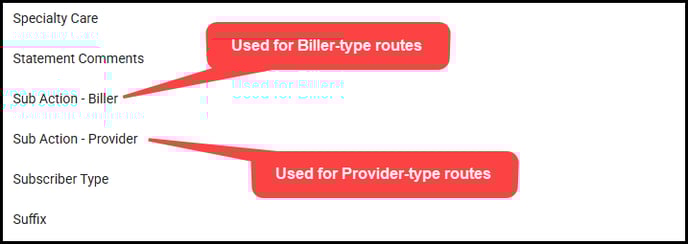
- Changing the Action Type from Biller to Provider will change the options available for selection in both the Action and Sub Action dropdowns.
- Enter the Scheduled Date that the bill number should appear in the user’s Router Box
- Optionally, 'Mark Urgent' and/or enter comments in the Comments field
- Marking Urgent will show the bill in the user's Router Box as the first route with red text.
- Select the Close button to complete the route
- Save the bill as normal to set the routing.
Using Provider-type Actions
The Provider Action type should only be used for routing bills to a quality assurance individual. Bills routed for these action types are able to be easily tracked using the Provider Actions by Date report.
The purpose of these system-defined Actions is to populate the Provider Actions by Date Report, allowing billers to understand the problems impacting billing performance related to missing details on patient care reports. While the Provider-type Actions are not able to be changed in Quick Pick Setup like the Biller-type Actions, Sub Actions can still be used alongside Comments to provide a better indication as to the exact problem, and both of these show on the Provider Actions by Date Report.
Use the Provider-type Actions and the associated report to understand and address the key issues that lead to bills requiring corrections before they can be billed.
Note: For EMS Charts ePCR customers, a .xml file is needed (not .aim) for importing into Crew Setup.
Remove/Complete Routing
To remove the routing, select the delete button. Once an action is completed, use the Complete button.

Note: Multiple routes can be entered for one bill. If you would like to see the history of the routes it is suggested to complete the route instead of deleting it once completed.