![AIM Logo Final White RGB@2x.png]](https://3437204.hs-sites.com/hs-fs/hubfs/AIM%20Logo%20Final%20White%20RGB@2x.png?height=50&name=AIM%20Logo%20Final%20White%20RGB@2x.png)
Importing Options
The import process in AIM Billing allows for bills to be created based on the patient care report data for a transport. The system will create a bill automatically for each trip in the import file.
The import process is a manual process by default. AIM offers different types of import processes depending on your ePCR software vendor.
- Manual Import (default method of importing, described below)
- Automatic Import via Web Service (bills are imported as they are completed in the ePCR system)
- Automatic Import via SFTP (bills are sent to a SFTP and are imported on a routine basis)
The Import Bills Utility is only available with no modules open in The AIM Billing System. Remember that the Import File must be created before beginning this process, and make sure to be in the proper company.
Please work with the third party vendor for questions about creating an import file in that program.
It is best practice to save the import files to a named folder on the C: Drive.
The file name often references the company or the date, both of which can be helpful in organizing and identifying data at a later time, or with addressing and correcting any errors or issues.
To begin an import manually, with all modules closed, go to the Utility icon in the top-right of the screen, then select 'Import Bills' to process the import file.
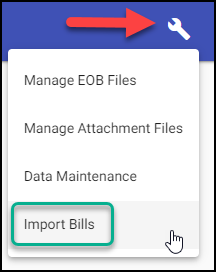
If Import Bills is not displayed as an option when selecting the Utility icon, make sure all modules are closed. You can close the currently-active module by clicking the three-dot icon on the action toolbar.
Please complete the Import Data screen to begin the import:
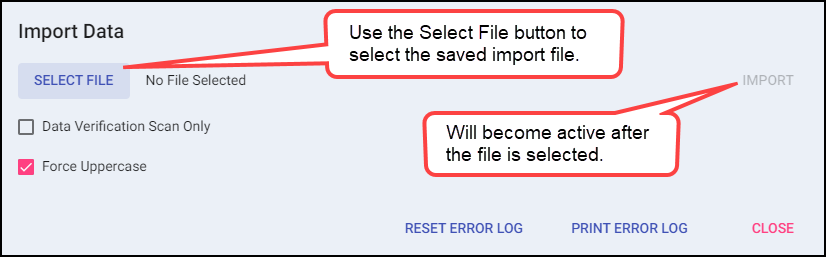
Select File: select the data file.
There are three file types that can be imported: .aim, .zip, and .xml.
Import Button: click to process the imported file.
Data Verification Scan Only: check to review data in the file, but not import.
Force Uppercase: check to import data in all uppercase letters (checked by default).
Reset Error Log Button: click to clear the Error Log.
Print Error Log Button: click to show the Error Log with report functionality.
Importing a Data File
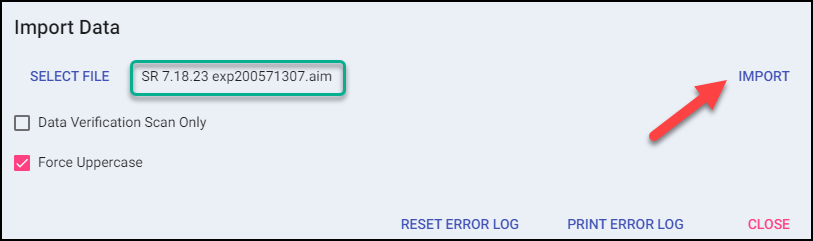
Once properly selected, the file name appears. Click the Import Button.
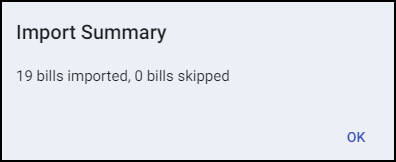
When completed, a prompt appears, showing how many bills/trips are imported into The AIM System.
See here for information on setting up automatic imports for supported ePCR vendors.
Contact your ePCR Vendor Support Department to verify if your ePCR vendor can facilitate sending data to AIM Billing automatically to avoid the manual process.
Imported Bills
The runs imported into The AIM System should match on-file information. Check reports in the third party and the Imported Bills Report of The AIM System.
Skipped Bills
Bills are skipped if there are errors in the data, invalid Bill Numbers or if a Bill Number already exists in The AIM System.
When skipped, always review the Error Log. The data likely needs to be checked in the third party software (it can be checked directly on the file).
Duplicate Bill Numbers
Duplicate Bill Numbers most often cause import failures. A Bill Number that already exists in the AIM Billing System cannot be imported.
Various scenarios can cause a duplicate Bill Number: mistaken use of the same number, Automatic Numbering, processing an Import File multiple times, or placement of a Bill Number on another file.
- If a Bill Number itself is duplicated, but the data is for two different runs, change the Bill Number in the other program and create a new import file.
- If a Bill Number is truly a duplicate, and both instances contain the same data, it should be ignored.
- If the duplication was caused by necessary/expected changes in the data, delete the existing Bill Number in the AIM Billing System and import the file again.
Minor Errors
Error messages can be informational and due to a mismatch of entries (locations or other list options) between the two programs. If this is the situation, review and select those fields in The AIM System to fix the informational error.
Review the entries and setup to avoid ongoing messages in the Error Log.
Data Verification Scan Only
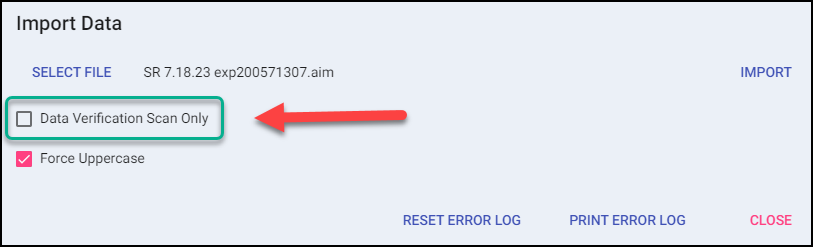
Mark this checkbox to check the validity of the file without actually importing the data. The functionality shows Imported/Skipped and errors, but does not actually import bills.
Error Log
The Error Log provides information on each import and details on any errors that occur. For manual imports, the Error Log can be ran in two locations - users can use the "Print Error Log" button in the Import Data screen (shown in the image above) or via the Utilities Dropdown with no modules open:
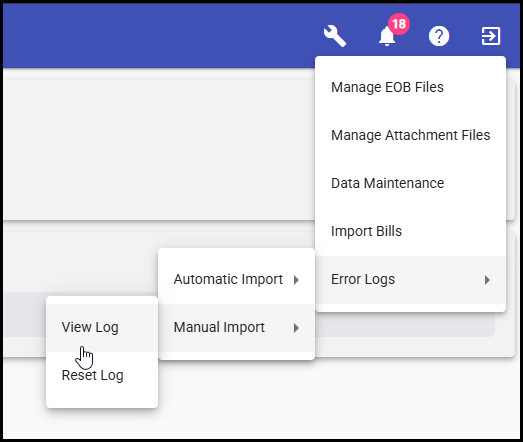
From this dropdown either the automatic or manual import logs can be reset. It is recommended that import error logs be cleared each time that all issues are resolved so that users can keep an up-to-date record of existing issues.
If using the automatic import function, users will be notified about new issues in the Automatic Import Errors section of the landing page:

Any user can view the automatic import error log to reset this grid.
Keep in mind that for all 3rd party imports, the formatting must be approved by RAM Software Systems and a valid file must be tested before the XML import files can be imported into The AIM System.
Please contact Support at 1-800-726-4362 or by e-mail at support@aim-system.com for any questions about approved 3rd party vendors.
Trip Numbering Settings For Newly-Imported Bills
Please contact Support to confirm your Trip Numbering settings for newly-imported bills. AIM can be configured to use one of the following Trip Numbering Options:
- Patient Care Report Number
- Incident Number
- Response Number
- Unit Dispatched CAD Record ID
- Automatic Numbering (using settings in Billing Configuration Settings Setup)
Trip Numbers will truncate spaces and hyphens during the import process. Example: Trip Number "12 345A" will become "12345A" after importing.
Trip Numbering Requirements: An alphanumeric string of up to 15 characters is a sequence of letters (A–Z, a–z) and digits (0–9) that is no longer than 15 characters.
ePCR Import Field Documentation
Below is a comprehensive table of all fields that can be imported from third-party ePCR systems into AIM Billing during the NEMSIS data import process.
| Billing Module Field Name | NEMSIS Element | Purpose |
|---|---|---|
| Information Tab: Patient Information | ||
| Patient Last Name | ePatient.02 | Captures the patient's last name for billing and identification. Imports to the Billing module and Accounts/Sub module (when verified as New Patient) Patient Last Name fields. |
| Patient First Name | ePatient.03 | Captures the patient's first name for billing and identification. Imports to the Billing module and Accounts/Sub module (when verified as New Patient) Patient First Name fields. |
| Patient MI | ePatient.04 | Captures the patient's middle initial for complete identification. Imports to the Billing module and Accounts/Sub module (when verified as New Patient) Patient Middle Initial fields. |
| Patient Suffix | ePatient.23 | Captures the patient's suffix for NEMSIS v3.5.1 agencies. Imports to the Billing Module if a Suffix Quick Pick exists and matches. |
| Patient Birth Date | ePatient.17 | Records patient's date of birth for age calculation and insurance verification. Imports to the Billing module and Accounts/Sub module (when verified as New Patient) Patient Last Name fields. Age is calculated automatically. |
| Patient Gender |
ePatient.13 (Gender) OR ePatient.25 (Sex) |
Documents patient's gender for demographic reporting and billing requirements. Imports to the Billing module and Accounts/Sub module (when verified as New Patient) Patient Gender fields. It varies state-by-state as to which element is sent in the ePCR import file, though ultimately the Gender field will populate based on either element. |
| Patient SSN | ePatient.12 |
Captures Social Security Number for insurance verification and patient identification. Imports to the Billing module and Accounts/Sub module (when verified as New Patient) Patient SSN fields. The system will automatically detect invalid SSN values and prevent them from importing. SSN values are considered invalid if the value:
Invalid SSNs import as blank. This does not prevent the bill from importing - just the SSN value itself. |
| Patient Address | ePatient.05 | Records patient's street address for billing correspondence. Imports to the Billing module and Accounts/Sub module (when verified as New Patient) Patient Address fields. |
| Patient City | ePatient.06 | Documents patient's city of residence. Imports to the Billing module and Accounts/Sub module (when verified as New Patient) Patient City fields. |
| Patient State | ePatient.08 | Records patient's state of residence. Imports to the Billing module and Accounts/Sub module (when verified as New Patient) Patient State fields. |
| Patient Zipcode | ePatient.09 | Captures patient's postal code for complete address. Imports to the Billing module and Accounts/Sub module (when verified as New Patient) Patient Zip Code fields. |
| Patient Phone | ePatient.18 | Records patient's contact phone number for billing inquiries. Imports to the Billing module and Accounts/Sub module (when verified as New Patient) Patient Phone Number fields. Will also be used as the Text-To-Pay Mobile Phone Number by default if no phone number existed previously. |
| Information Tab: Insured Information | ||
| Patient Relationship | ePayment.22 |
Defines the patient's relationship to the insured party (self, spouse, child, etc.) Imports to the Relationship to Insured field on the Bill Information Tab of the Billing module. If imported as "Self", this will auto-populate the Insured Information section with the patient demographic details from the Patient Information section above it. |
| Insured Last Name | ePayment.19 | Captures the insurance policy holder's last name. Imports to the Billing Module's Insured Last Name field. |
| Insured First Name | ePayment.20 | Captures the insurance policy holder's first name. Imports to the Billing Module's Insured First Name field. |
| Insured MI | ePayment.21 | Records the insurance policy holder's middle initial. Imports to the Billing Module's Insured Middle Initial field. |
| Information Tab: Service Information | ||
| Trip Number | eResponse.03 | Unique incident number that links the billing record to the ePCR run report. Can be configured from a number of different elements on an imported PCR. Imports to the Bill Number field. |
| Service Date | eTimes.03 |
Records the date of service for billing and claims processing. This can be determined in a number of ways, ultimately importing to the Service Date field. By default, the system will use the date part of the eTimes.03 - Unit Notified by Dispatch Date/Time element. However, the system can also be configured to use the date part of the eTimes.09 - Unit Left Scene Date/Time instead by enabling the "Use Unit Left Scene Date as Date of Service on Import" setting in Billing Configuration Settings Setup. This is useful for transports that span midnight, as this is Medicare's definition of the date of service (the date that the unit left scene with patient loaded). |
| Transport Tab: Picked Up Location Information | Note: Transport Location Names must match exactly in the ePCR System as they do in AIM Billing's Picked Up/Taken To Locations Setup in order to correctly import the entire location details (including Address Type and Modifiers). | |
| Picked Up Address Type | eScene.09 |
Categorizes the type of Picked Up location. If the Incident Location Type on the PCR is recorded with a value beginning with "Y92.0", then the Picked Up Address Type will populate as "Residence" on the imported bill. The Picked Up Address Type either populates with the Location Type of the Picked Up Location from Picked Up/Taken To Locations Setup if that location is already available in Setup. Otherwise, this field will be blank. Note: The Address Type field must be selected in order to properly populate the Modifier 1 for most types of bills. |
| Picked Up Name | eScene.13 | The name of the location associated with the Scene of the incident or transport. Imports to the Picked Up Location Name. Must match identically to the Name of the location to import, otherwise eScene.09 must be recorded with a value beginning with "Y92.0" to automatically populate "Residence" for the name. |
| Picked Up Address | eScene.15 | Documents the street address where patient was picked up. Imports to Picked Up Location Address. |
| Picked Up City | eScene.17 | Records the city where patient transport originated. Imports to the Picked Up Location City. |
| Picked Up State | eScene.18 | Documents the state where patient transport originated. Imports to the Picked Up Location State. |
| Picked Up Zip | eScene.19 | Records the zip code of the pickup location. Imports to the Picked Up Location Zip Code. |
| Transport Tab: Taken To Location Information | Note: Transport Location Names must match exactly in the ePCR System as they do in AIM Billing's Picked Up/Taken To Locations Setup in order to correctly import the entire location details (including Address Type and Modifiers). | |
| Taken To Address Type | eDisposition.21 |
Categorizes the type of destination facility (hospital, skilled nursing, etc.) If the Type of Destination on the PCR is recorded with "Home", then the Taken To Address Type will populate as "Residence" on the imported bill. The Taken To Address Type either populates with the Location Type of the Taken Location from Picked Up/Taken To Locations Setup if that location is already available in Setup. Otherwise, this field will be blank. Note: The Address Type field must be selected in order to properly populate the Modifier 1 for most types of bills. |
| Taken To Location Name | eDisposition.01 |
Records the specific name of the destination facility. Imports to the Taken To Location Name. Must match identically to the Name of the location to import, otherwise eDisposition.21 must be recorded with "Home" to automatically populate "Residence" for the name. |
| Taken To City | eDisposition.04 | Documents the city of the destination facility. Imports to the Taken To City. |
| Taken To State | eDisposition.05 | Records the state of the destination facility. Imports to the Taken To State. |
| Taken To Zip | eDisposition.07 | Captures the zip code of the destination facility. Imports to the Taken To Zip Code. |
| Charges Tab: Billable Item Data | Note: Requires Service Level Mapping to populate automatically. | |
| Base Rate (Code, Description, Price) | ePayment.50 | Imports the Base Rate data associated with that Service Level in Service Level Mapping Setup. |
| Mileage (Code, Description, Price) | ePayment.50 | Imports the Mileage Rate data associated with that Service Level in Service Level Mapping Setup. |
| Number of Miles | eResponse.19, eResponse.20, eResponse.21, eResponse.22 | Calculates total billable miles using odometer readings: eResponse.19 (Arrival at Scene), eResponse.20 (Arrival at Patient), eResponse.21 (Departure from Scene), eResponse.22 (Arrival at Destination) |
| Miscellaneous Data | ||
| Crew Collected Insurance Name / Insurance Policy Number |
ePayment.10 (Name) AND ePayment.18 (Number) |
Posts new Insurance Information collected by the crew in the Insurance Section of the ePCR to two locations for existing patients: 1) Crew Collected Insurance Grid on the Other Tab of the Bill. 2) Existing (From Account) Payers column in the Add Payer button screen. For new patients, this will be shown in the Grid and automatically populated on the bill's Payers Tab if the Insurance Name matches an existing payer type or commercial payer. |
| Narrative | eNarrative.01 |
Imports the complete patient care narrative for medical necessity documentation. Imports to the Bill's Narrative Tab under the Dispatch/ePCR section. Also populates when using the Potential ICD Codes feature - the entire narrative is analyzed for like language in previously-paid bills for comparison when suggesting ICD codes on the newly-imported bill. |
| Import Key | dAgency.02 | Unique agency identifier that ensures data is imported to the correct billing agency account. This doesn't actually import, but is checked during the import process and prevents the bill from actually importing if what is being sent on the PCR doesn't match what is in Agency Information Setup. |
Import Best Practices
- In order to Import, the dAgency.02 - Agency Number in the imported bill must be equal to the value in AIM's Agency Information Setup in the Import ID field. Check what Agency Number is being sent on the patient care report prior to configuring this field. Data will not be imported unless these two values match. This is typically confirmed by AIM Support when configuring the import process, but any future changes will cause imports to begin to fail.
- AIM Support must be told what Bill Number to utilize for trip numbering prior to beginning to import. See section above for all Bill Number options.
- It is important to routinely check the ePCR system to make sure all data has exported successfully on a routine basis. The top reasons why a bill will not import are detailed below:
- If a bill does not meet the Trip Numbering requirements listed above.
- Fix: Update the trip number in the ePCR system, then try to import again.
- The imported bill's trip number matches an existing bill.
- Fix: Confirm the bill is not a duplicate. If not, update the trip number in the ePCR system, then try to import again.
- If the Import ID doesn't match.
- Fix: Update the Import ID in Agency Information Setup if this is not already configured. Otherwise make sure the same number
- If the format is not correct (NEMSIS V3 .xml or .aim formats are the only accepted formats).
- Fix: Update the export settings in the ePCR system or contact ePCR system support to make sure
- If a bill does not meet the Trip Numbering requirements listed above.