![AIM Logo Final White RGB@2x.png]](https://3437204.hs-sites.com/hs-fs/hubfs/AIM%20Logo%20Final%20White%20RGB@2x.png?height=50&name=AIM%20Logo%20Final%20White%20RGB@2x.png)
The Configuration Settings Setup should be reviewed before starting data entry in any of the modules.
Automatic Find Exact Match: This setting will allow 'Find Exact Match' to be enabled by default when conducting a patient verification when importing/adding a new bill. Find Exact Match automatically selects the first search result that matches with the search string. The settings in this dropdown allow the setting to be defaulted depending on the selection:
- Off
- Default selection. If selected, Find Exact Match is never enabled by default.
- Default for Verify Imported Bill/Select an Existing Patient or Create a New One screen
- If selected, Find Exact Match is enabled by default when editing imported bills.
- Default for Create Bill & Patient Lookup screen
- If selected, Find Exact Match is enabled by default when adding a new bill.
- Default for both screens
- If selected, Find Exact Match is always enabled by default.
Automatic Contractual Allowance: If checked, the program uses data entered in the Payer Approved Amounts Setup to post a Contractual Allowance on a bill when the bill is printed or transmitted. This option affects properly established payers, the Payer Approved Amounts must be completed to make use of this option.
Using the Automatic Contractual Allowance provides for a more accurate level of reporting. The balances show the expected payment, not the full amounts billed.
This may greatly affect other reports, especially within the A/R Module.
Post Matching Patient Bill Transaction: If checked, posts a print transaction to the bill when printing a matching bill (Patient Blank or Patient Invoice).
Post Reprint Statement Transaction: If checked, posts a transaction when a statement is reprinted.
Update Payment Transactions with Commercial Payer Name: If checked, when a transaction code of PC is entered in the Add transaction window, the payer name will be shown in the description instead of the default "Commercial Ins. Pymt".
Enable Subscription Mailing List Prompt: If checked, a prompt appears when entering a new bill number in the Billing Module, provided that the newly created account does not already exist in the Accounts/Subscription Module. Clicking Yes on this prompt adds the new account information to the Subscription Module.
Post Reprint Bill Transaction: If checked, posts a transaction when a bill is reprinted.
Use Unit Left Scene Date as Date of Service on Import: If checked, imported bills will utilize the date recorded in the Unit Left Scene Date/Time field for the bill's Date of Service when available, rather than the Unit Notified by Dispatch Date/Time. This setting is particularly beneficial for scenarios where transports frequently extend past midnight.
Remove Alpha Characters from Bill Numbers: If checked, automatically removes any alpha characters from imported bills during the import process (example: ePCR # ABC123456 will import as Bill # 123456 if enabled).
Automatic Electronic Validations on Save: If checked, the Transmission Warnings that typically trigger when manually transmitting a batch of claims will instead trigger when saving individual bills, allowing for easier correction of bills that contain incorrect/invalid/missing data.
Automatic Mandatory Print Highlights: Automatically enables Mandatory Print highlights for all users in the Billing Module. This highlights all fields set as 'Mandatory Print' in Field Configuration Setup, which will allow users to easily understand all fields required to update a payer to Waiting status.
Automatic Mandatory Entry Highlights: Automatically enables Mandatory Entry highlights for all users in the Billing Module. This highlights all fields set as 'Mandatory Entry' in Field Configuration Setup, which will allow users to see which fields are required to Save the bill.
Automatic Bill Numbering for 3rd Party PCR Import: If checked, the imported PCR's will be automatically assigned a Bill number based off of the existing 'Min and Max Bill Number'. System will utilize the eRecord.01 (Patient Care Report Number) value for determining if a bill is a duplicate or not while this setting is enabled, instead of the Incident or Response Numbers.
Automatic Bill Numbering: If checked, generates a bill number on every new bill started by adding one number to the last created bill number. The beginning number should start with the number entered as the 'Min Bill Number' Value.
Min Bill Number: The user can enter the lowest bill number associated with Automatic Bill Numbering.
Max Bill Number: The user can enter the highest bill number associated with Automatic Bill Numbering.
If Automatic Bill Numbering is enabled, billers will be able to view the Patient Care Report Number and the Incident Number of patient care reports that fail to import on the Import Error Log.
Recon Payment Posting Options
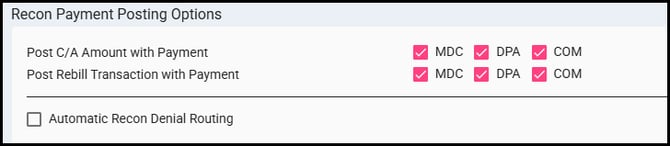
Post C/A Amount with Payment: If checked, will automatically post the C/A for the checked payer types when a Recon payment is posted.
Post Rebill Transaction with Payment: If checked, will automatically post the rebill transaction for the checked payer types when a Recon payment is posted.
Automatic Recon Denial Routing: If checked and a user processes a denial, the bill will be automatically routed back to its creator with the denial code and denial description in the comments of the router record.

Last Verified At Number of Days: Number entered will indicate how many days after the 'Last Verified At Date' of the payer eligibility will need to be rechecked.
This feature works in conjunction with the “Last Verified At Date” option added to Billing, Field Configuration Setup, Bill Payers page and the “Enforce Last Verified At Date” option added to General Setup, Commercial Payers.
Timely Filing Buffer (Days): The number of days before a payer's timely filing deadline that the system will route the bill to the biller who created it for review. For example, if a payer's Timely Filing (Days) is 180 and the Buffer is 15, the bill is routed 165 days after the date of service — 15 days before the deadline.
Default Font for Bills/Statements: This font will be used for all paper formats for all users in the program. The user can choose from the following options:
- Arial
- Courier New (default)
- Georgia
- Times New Roman
- Trebuchet MS
- Verdana
Clearinghouse Print Services Settings

Before enabling any of these settings, you must confirm the clearinghouse is prepared to receive your automated uploads. Contact AIM Support for more information.
Auto-upload Patient Invoice to Clearinghouse: If checked, patient invoices automatically upload to the clearinghouse when printed. This setting is only interactable when the agency is configured for the Trizetto or Waystar patient invoice format.
Auto-upload Patient Statements to Clearinghouse: If checked, patient statements automatically upload to the clearinghouse when printed. This setting is only interactable when the agency is configured for the Trizetto or Waystar patient statement format.
Auto-upload Patient Warning Letters to Clearinghouse: If checked, patient warning letters automatically upload to the clearinghouse when printed. This setting is only interactable when the agency is configured for the Waystar patient warning letter format. Not available for Trizetto customers.
Auto-upload applies to manual print, batch print, reprint, and Task Scheduler print workflows. When a setting is unchecked or grayed-out, documents print normally without upload.
When SAVE is clicked any changes will be saves, if CLOSE is clicked before a change has been saved the user is prompted with a warning.