![AIM Logo Final White RGB@2x.png]](https://3437204.hs-sites.com/hs-fs/hubfs/AIM%20Logo%20Final%20White%20RGB@2x.png?height=50&name=AIM%20Logo%20Final%20White%20RGB@2x.png)
This guide provides detailed explanations for error and warning messages that appear during the pre-transmission validation of ambulance billing claims. Addressing these issues before submission is critical to prevent claim rejections and denials.
Reminder that AIM Support can connect directly with users for further explanation of these warnings/errors as well as to troubleshoot the warnings/errors that are encountered often.
Electronic Transmission Validation
Enable Electronic Transmission Validation on Save in Billing Configuration Settings Setup to automatically validate your bill against AIM's electronic claims rules during the save process. This feature:
- Validates claims using the same rules applied during batch transmission
- Identifies potential rejection and denial reasons before submission
- Particularly useful for secondary billing scenarios
- Improves overall claim quality and reduces resubmission rates
AIM also utilizes AI in order to provide claim suggestions in a new feature coming soon. Click here to learn more.
How It Works
When this feature is enabled and you save a bill with an active electronic payer with all mandatory fields completed:
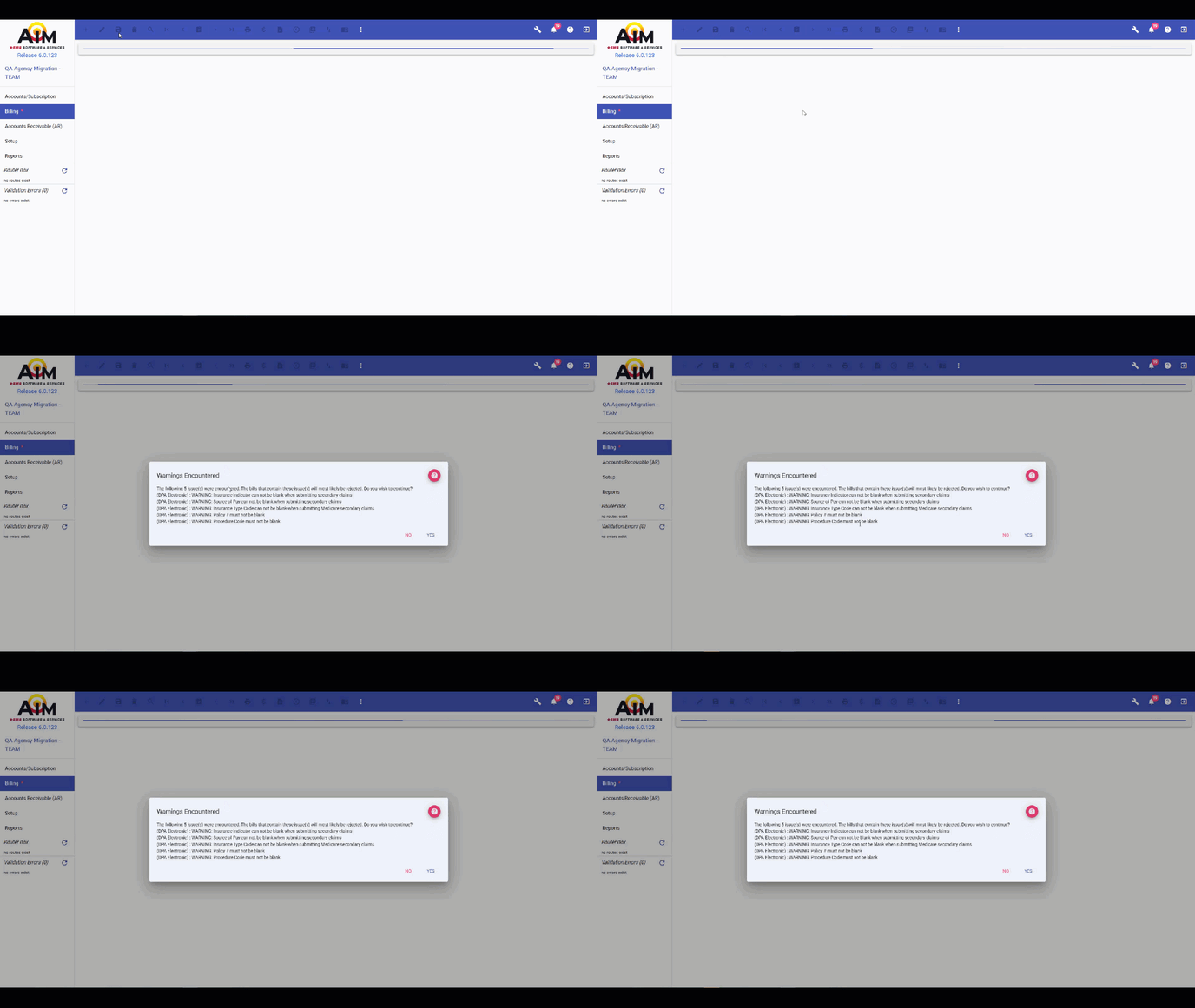
- A "Please wait" message appears during validation
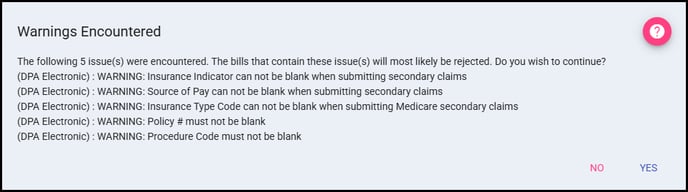
- The system displays claim-level warnings and errors in a popup window
- Field names and payer information (when applicable) are clearly identified
- You can choose to:
- Continue - Proceed with saving the bill to Waiting status
- Cancel - Return to edit mode to address validation issues
Note: Bills are only revalidated if their status has changed since the last validation, preventing unnecessary processing delays.
While this validation adds processing time to the save action, it significantly reduces downstream rejections/denials and improves first-pass acceptance rates.
AIM automatically validates your entire batch of claims against these rules during the transmission process. However, batch validation requires navigating back to individual bills to make corrections, which can be time-consuming when multiple bills contain errors.
Enabling Electronic Transmission Validation on Save in Billing Configuration Settings Setup provides a more efficient workflow by validating each bill individually at the point of entry. This approach allows you to identify and correct issues immediately, rather than discovering them during batch transmission when context switching between multiple bills becomes necessary.
Company Information Errors
ERROR: Tax ID is blank in company information
- What it means: Your organization's Tax Identification Number (EIN) is not entered in Agency Information Setup
- Impact: Claims will be rejected as the Tax ID is required for provider identification
- Resolution: Navigate to Agency Information Setup and enter the Tax ID under the Identification Numbers section.
ERROR: NPI # is blank in company information
- What it means: Your organization's National Provider Identifier is not entered in Agency Information Setup
- Impact: Claims cannot be processed without a valid NPI number
- Resolution: Enter your 10-digit NPI number in the NPI Number field in Agency Information Setup under the Identification Numbers section.
System Configuration Errors
ERROR: Unable to map out key: Submitter Identification
- What it means: The system cannot find the submitter ID configuration for electronic claims submission
- Impact: Claims cannot be transmitted electronically
- Resolution: Contact AIM Support - you may require additional updates to Electronic Transmissions Setup
ERROR: Unable to map out key: Test Indicator
- What it means: The system cannot determine if this should be a test or production claim
- Impact: Claims may be sent to the wrong environment
- Resolution: Contact AIM Support - you may require additional updates to Electronic Transmissions Setup
ERROR: Unable to map out key: Taxonomy Code
- What it means: The provider taxonomy code (specialty designation) is not configured
- Impact: Claims will be rejected due to missing provider classification
- Resolution: Add the appropriate taxonomy code as a default value in Field Configuration Setup
ERROR: Unable to get next submission number
- What it means: The system cannot generate a unique batch control number for the claim submission
- Impact: Claims cannot be batched for transmission
- Resolution: Contact AIM Support - transmission batch did not build properly and requires manual correction by development to resolve.
ERROR: Diagnosis Code Pointers in SV107-1 through SV107-4 must not be duplicated within the same detail service line
- What it means: The same diagnosis code is referenced multiple times for a single service line item
- Impact: Claims will be rejected for invalid diagnosis code linking
- Resolution: Contact AIM Support - Diagnosis Pointers are intended to populate automatically and correctly, and something prevented that from happening that will require Support review.
1000A Loop - Submitter Information
WARNING: Submitter name must not be blank in 1000A.NM1.03
- Location: Agency Information Setup
- Resolution: Enter the billing company or submitter organization name in Agency Information Setup's Name Field
WARNING: Submitter ID must not be blank in 1000A.NM1.09
- Location: Electronic Transmissions Setup
- Resolution: Enter your electronic submitter ID provided by your clearinghouse or payer
WARNING: Submitter Contact Name must not be blank in 1000A.PER.02
- Location: Agency Information Setup
- Resolution: All name fields (Agency Information Tab, Electronic Claims Addresses Tab) must be completed in Agency Information Setup
1000B Loop - Receiver Information
WARNING: Receiver Name must not be blank in 1000B.NM1.03
- Location: Payer Name
- Resolution: A name for a payer must be established. If you receive this warning, contact AIM Support.
2010AA Loop - Billing Provider Information
WARNING: Billing Provider Name must not be blank in 2010AA.NM1.03
- Resolution: All name fields (Agency Information Tab, Electronic Claims Addresses Tab) must be completed in Agency Information Setup
WARNING: Billing Provider ID must not be blank in 2010AA.NM1.09
- Resolution: Enter your NPI in Agency Information Setup
WARNING: Billing Provider City/State/Zip must not be blank in 2010AA.N4.01/02/03
- Resolution: Complete all billing provider address fields in the Electronic Claims Addresses Tab > Billing Provider section of Agency Information Setup
2010AB Loop - Pay-to Provider Information
WARNING: Pay-to Provider Name must not be blank in 2010AB.NM1.03
- Resolution: Complete the Name field in the Electronic Claims Addresses Tab > Pay To section of Agency Information Setup
WARNING: Pay-to Provider ID must not be blank in 2010AB.NM1.09
- Resolution: The pay to provider ID must be completed in Agency Information Setup
WARNING: Pay-to Provider City/State/Zip must not be blank in 2010AB.N4.01/02/03
- Resolution: Complete all pay-to address fields in the Electronic Claims Addresses Tab > Billing Provider section of Agency Information Setup
2000B/2010BA Loop - Subscriber Information
WARNING: Relationship must not be blank in 2000B.HL.04
- Resolution: Specify the patient's relationship to the insurance subscriber. This must be entered in the Bill Information Tab as well as in the Payers Tab under the Ambulance Information Tab.
WARNING: Relationship must equal SELF 2000B.HL.04
- Note: This appears when the patient is the subscriber but relationship is set incorrectly
- Resolution: Set relationship to "SELF" when patient and subscriber are the same person in the Bill Information Tab as well as in the Payers Tab under the Ambulance Information Tab.
WARNING: Subscriber Last Name/First Name must not be blank in 2010BA.NM1.03/04
- Resolution: Ensure complete subscriber (patient and insured) name information is entered in Bill Information Tab
WARNING: Policy # must not be blank in 2010BA.NM1.09
- Resolution: Enter the insurance policy or member ID number in the Payers Tab
WARNING: Policy # must be 12 characters in 2010BA.NM1.09
- Note: Specific to certain payers (often Medicare)
- Resolution: Ensure the policy number meets the payer's format requirements in the Payers Tab
WARNING: Subscriber Address/City/State/Zip must not be blank
- Resolution: Complete all subscriber address fields in the Bill Information Tab
WARNING: Subscriber Birth Date must not be blank in 2010BA.DMG.02
- Resolution: Enter subscriber's date of birth in MM/DD/YYYY format in the Bill Information Tab
WARNING: Subscriber Gender must not be blank in 2010BA.DMG.03
- Resolution: Select M (Male) or F (Female) for subscriber in the Bill Information Tab
WARNING: Subscriber State has an invalid length in 2010BA.N4.02
- Resolution: Use 2-character state abbreviation (e.g., CA, NY, TX) in the Bill Information Tab
2010BB Loop - Payer Information
WARNING: Ins OrgID cannot be blank in 2010BB.NM1.09
- Resolution: Enter the payer's organization ID (also known as the Com Elec ID or "Commercial Electronic ID") or payer identification number in the Payers Tab
WARNING: Unable to get payer address in 2010BB
- Resolution: Verify payer address information is configured in Commercial Payers Setup / Electronic Transmissions Setup (depending on if the payer is commercial or not)
2300 Loop - Claim Information
ERROR: Date of Service cannot be greater than current date in 2300.DTP.03
- Resolution: Update the Date of Service to not be a future date in the bill's Information Tab
WARNING: There are no billable items entered
- Resolution: Add at least one billable item to the bill's Charges Tab
- See Service Level Mapping Setup to auto-populate bill charges based on the Service Level of the ePCR when importing
WARNING: Balance is $0
- Resolution: Verify charges are properly calculated and applied in the Charges Tab
WARNING: Total Bill cannot be negative in 2300.CLM.02
- Resolution: Review and correct any negative charge amounts in the Charges Tab
WARNING: Total Bill cannot be greater than $99,999.99 in 2300.CLM.02
- Resolution: Verify charges are accurate in the Charges Tab; may need to split into multiple claims if legitimate
WARNING: Assignment/Non-Assignment cannot be blank in 2300.CLM.07
- Resolution: Indicate whether benefits should be assigned to provider (typically "Yes" for ambulance services) in the Payers Tab
WARNING: Release Info cannot be blank in 2300.CLM.09
- Resolution: Indicate patient authorization to release medical information (typically "Y") in the Payers Tab
WARNING: Patient Weight cannot be greater than 999 in 2300.CR1.02
- Resolution: Verify patient weight is entered correctly in pounds (3 digits maximum) in the Payers Tab
WARNING: Medically Necessary cannot be blank in 2300.CRC.03
- Resolution: Confirm medical necessity certification for ambulance transport in the Payers Tab
WARNING: ICD10 Code must not be blank in 2300.HI1-2
- Resolution: Enter at least one valid ICD-10 diagnosis code in the Diagnoses Tab
2310A Loop - Referring Provider
WARNING: Referring Provider Last Name/First Name cannot be blank in 2310A.NM1.03/04
- Resolution: Enter the complete name of the physician who ordered/referred the ambulance transport in the Payers Tab
2310C/E/F Loops - Service Facility Information
WARNING: Service Facility Location Name cannot be blank
- Resolution: Enter the pickup and/or destination facility names in the Transport Tab
WARNING: Service Facility Address/City/State/Zip cannot be blank
- Resolution: Complete all address fields for service locations in the Transport Tab
WARNING: Unable to get address for [location]
- Resolution: Verify the facility is properly configured in Picked Up / Taken To Locations Setup
2320/2330B Loop - Secondary Insurance Information
WARNING: Medicare Secondary Payer fields cannot be blank
- Note: These warnings appear when an electronic payer is secondary in the Payers Tab
- Required fields:
- Insurance Indicator
- Insurance Name
- Commercial Electronic ID
- Insurance Number
- Relationship to Insured
- Source of Pay
- Assign/Not Assign
- Insurance Type Code
- Required fields:
- Resolution: Complete all secondary insurance information when billing an electronic secondary claim
WARNING: Supplemental Assign/Non-Assign cannot be blank in 2320.OI.03
- Resolution: Indicate assignment of benefits for secondary insurance in the Payers Tab
WARNING: Supplemental Insurance Name/OrgID cannot be blank in 2330B
- Resolution: Enter secondary payer name and identification number in the Payers Tab
2400 Loop - Service Line Information
WARNING: Item charge cannot be greater than $99,999.99 in 2400.SV1.02
- What it means: A line item charge exceeds the maximum allowed amount in the Charges Tab
- Impact: Claims with line items over this limit will be rejected
- Resolution: Verify line item charges are accurate in the Charges Tab
WARNING: Item charge cannot be negative in 2400.SV1.02
- What it means: A service line has a negative charge amount in the Charges Tab
- Impact: Claims with negative line items will be rejected
- Resolution: Remove or correct negative charge amounts in the Charges Tab
WARNING: Procedure Code must not be blank in 2400.SV1.01-02
- What it means: HCPCS/CPT (procedure) code is missing for a billable item in the Charges Tab
- Impact: Claims require valid procedure codes for all services
- Resolution: Enter valid procedure code for billable items (e.g., A0425, A0429) in Billable Items/Procedure Codes Setup
WARNING: Modifier 1 must not be blank in 2400.SV1.01-03
- What it means: Required modifier is missing from a billable item in the Charges Tab
- Impact: Ambulance claims require origin/destination modifiers
- Resolution: Add required modifiers (e.g., RH, QL for origin/destination) in for the transport location types in Modifier 1 Setup OR verify the transport locations are correctly entered in the Transport Tab
WARNING: Billable Item Quantity must not be blank 2400.SV1.02
- What it means: The number of units for a service is not specified in the Charges Tab
- Impact: Claims will be rejected without quantity information
- Resolution: Enter the number of units (typically loaded miles for mileage) in the Charges Tab.
Relationship Validation Warning
WARNING: The value for the field 'Relationship to Insured' for this payer is different than the value entered for 'Relationship to Insured' in the Patient Information
- What it means: There's a mismatch between the patient's relationship to subscriber in different areas of the system (Bill Information Tab, Payers Tab)
- Impact: Claims will be rejected for inconsistent relationship information
- Resolution: Ensure the Relationship to Insured is consistent in both the Bill Information Tab and the Payers Tab