![AIM Logo Final White RGB@2x.png]](https://3437204.hs-sites.com/hs-fs/hubfs/AIM%20Logo%20Final%20White%20RGB@2x.png?height=50&name=AIM%20Logo%20Final%20White%20RGB@2x.png)
The Payer Approved Amount Setup is where payer specific charge amounts can be added by date range.

The Payer Category drop-down field will list all the customer specific payer types for standard payers. For specific commercial payers, this will list all configured commercial payers in Commercial Payer Setup.
This field will only show the payer type and not the form type. Each option will be combined into one.
If there are set Participating Provider Agreements or contracts with commercial payers, nursing homes, hospitals, or other services, use the specific payer.
Add: A new value can be added to the list using the plus button on the top right.
When add is selected, it opens the data entry for adding a new Payer Approved Amount for the selected Payer Category. The Start and End dates are required for the Save and Save & Add buttons to be activated. Selecting Cancel will take the user back to the Payer Approved Amount Setup without adding a new entry to the grid.
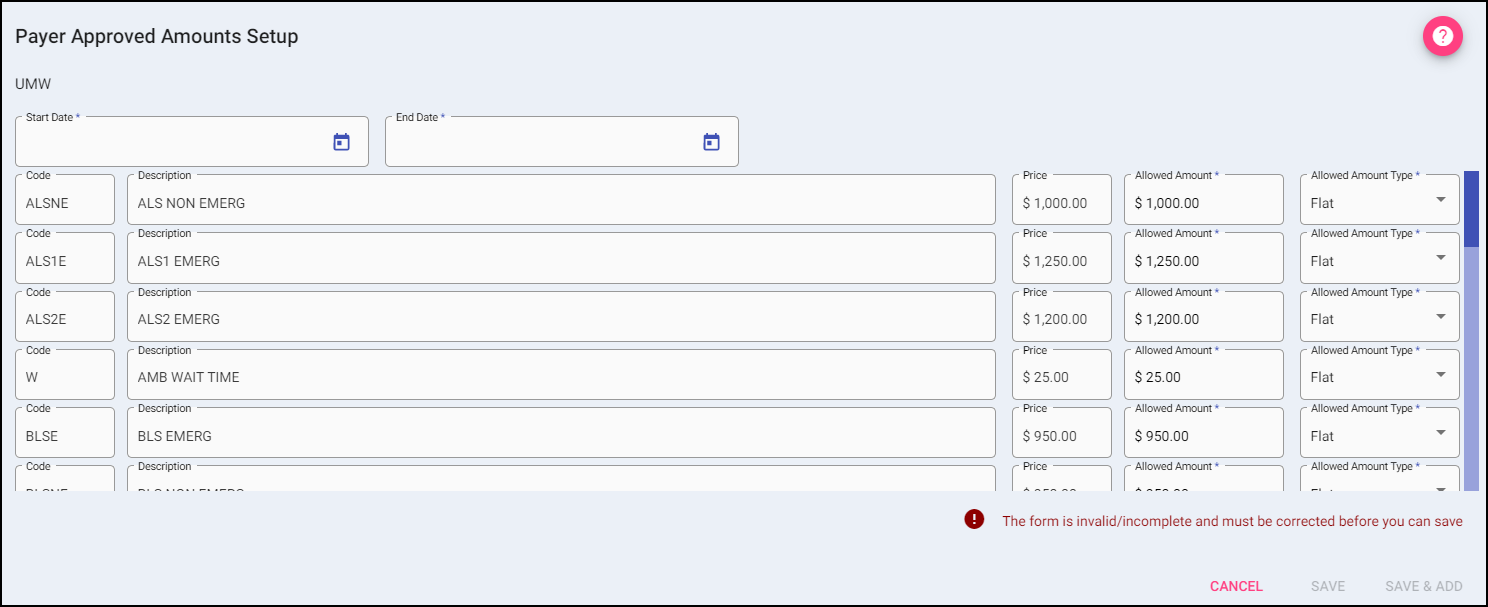
The Code, Description, and Price are listed from the Billable Items Setup.
Allowed Amount: This is defaulted to the price of the charge, but can be changed by typing over the amount. This is what the payer pays on the code.
Allowed Amount Type: This is defaulted to Flat, but can be changed by clicking on the drop-down and selecting Percentage. If Percent is selected, enter the appropriate value here (use Percent if the contracted payer pays a percentage, not a flat amount, or in the case of billing (patients) a percent of the bill.)
- Payer Approved Amounts are typically only useful for the Medicare and/or Medicaid Payers.
- Payer Approved Amounts do not identify co-pays and coinsurance involved in billing.
- Payer Approved Amounts provide necessary details for the Automatic Contractual Allowance Option, but unless that switch is selected in the Configuration Settings, this functionality is not enabled and data here does not affect program processes.
- It is the responsibility of each company to know the correct approved amounts. These can be entered from the Medicare Ambulance Fee Schedule (State, Locality, Rural, Super Rural, and Urban). You can access a reference for the Medicare Ambulance Fee Schedule here: http://www.cms.hhs.gov/AmbulanceFeeSchedule/02_afspuf.asp#TopOfPage
Filter: To narrow the results of a list, begin typing the date range you are searching for.
Date Range must be entered in the same format as the dates are displayed in the grid results. Example: 06/01/22 will not return results, the date would need to be entered as 6/1/22
Actions:
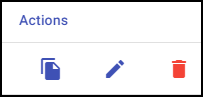
Duplicate: Allows the user to duplicate the approved amount for the same payer (Duplicate) or to another payer (Copy to Other Payers).
- Duplicate: This will open an add window with all the information filled out exactly as the one being duplicated, however the user must fill in the Start and End date to activate the Save and Save & Add buttons.
- Copy to Other Payers: This will open another window listing all the payers from the Payer Category tab, Multiple payers can be selected in this section. Once a Payer has been selected, the SELECT button will be active. Clicking select will copy the approved amount exactly to the selected payer(s).
Edit: If changes need to be made to an entry, use the edit button.
Delete: Remove an existing entry.