![AIM Logo Final White RGB@2x.png]](https://3437204.hs-sites.com/hs-fs/hubfs/AIM%20Logo%20Final%20White%20RGB@2x.png?height=50&name=AIM%20Logo%20Final%20White%20RGB@2x.png)
See Field Configuration Setup to learn more about customization of the ePCR data entry process.
Default Profiles
AIM serves a wide variety of agencies, but each system built in AIM come with pre-built profiles depending on the State your agency operates in:
- Cancel: For documentation of calls that were placed, but no patient was found or were cancelled in route to the scene or pick up location.
- Dead At Scene: For use only with DOAs or to document expirations in the field or during prehospital care.
- Emergency: Intended to be used for a wide variety of emergent calls, such as 911 responses or otherwise high priority transports.
- Refusal: Similar to the Cancel profile, but provides the ability to create certain requirements, such as for documentation of Refusal Signatures, for example, that are not necessary on cancelled calls.
- Schedule: Can be used to document a wide variety of non-emergent transports ranging from wheelchair/dialysis to interfacility transports.
- Note that while these basic profiles can be utilized, it is highly recommended to set up profiles specific to the types of calls that your agency provides in order for ease of completion of patient care reports and data/statistical-related reporting that AIM offers.
During the Configuration Meeting training on AIM ePCR, profiles are addressed and configured from top to bottom with the ePCR Trainer. Contact AIM Support to schedule a Configuration Meeting to review your Field Configuration settings if you believe beneficial enhancements could be made.
To create a profile:
- Click Add.
- Enter a name.
- Select a Profile To Copy to copy the field configurations from the selected profile.
- Mark the profile configurations as needed.
- Click Save.
- Configure the profile in the Field Configurations Area.
Profile Settings
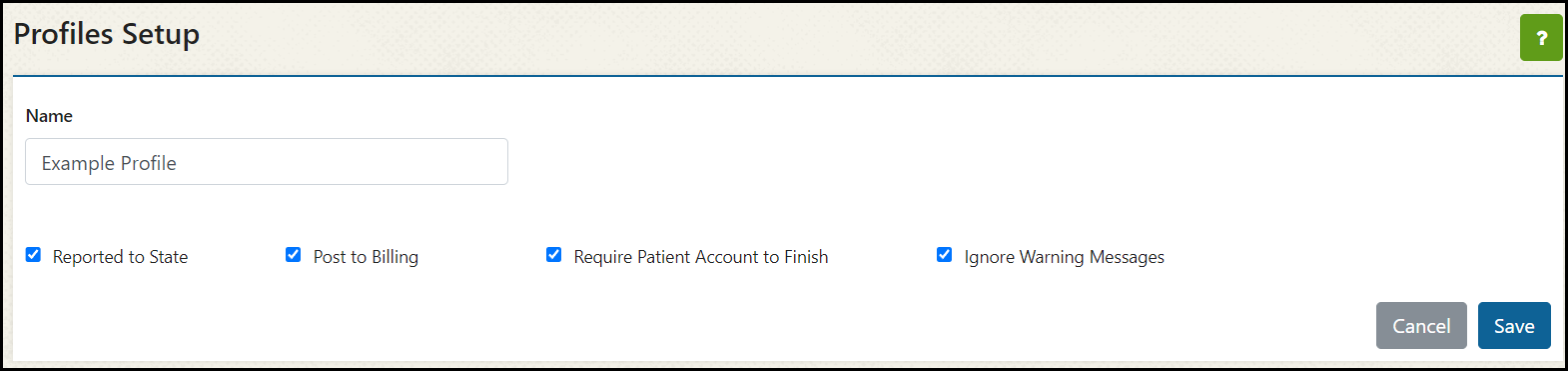
Each profile has 4 settings that can be toggled on/off, depending on what kind of ePCRs will be completed under that profile.
Name
Enter a name for this profile. Names of profiles can be changed at any time and all current/existing and future patient care reports created under that profile will reflect the new name.
Reported to State
If enabled, when a PCR of this profile is completed and validated against NEMSIS and state rules, the patient care report will automatically be submitted to the state repository.
Before even considering disabling this section, check with your regional EMS authority to determine what data they require to be submitted to the state. You can also contact AIM Support for more information.
99.9% of the time, the state will require the ePCR to be submitted because of today's data-driven state of EMS reporting standards.
If disabled, PCRs of this profile do not get submitted to the state. This is extremely atypical and not recommended to disable. Most states require ALL patient care reports to be submitted to the state repository and most states also require that to take place within 24 hours of the Back in Service Date/Time.
However, if your state does not require certain types of transports/responses to be submitted to the state repository, this setting can be disabled. If it is disabled, PCRs created under this profile must only adhere to mandatory field completion and skip the NEMSIS and State Validation steps entirely.
Post to Billing
This setting ONLY pertains to AIM Billing customers. If enabled, the PCR will post to billing once it is completed. Optionally, a QA Review can take place before this happens - see Patient Care Setup > Configuration Switches Setup and review the QA Options to learn more.
If disabled, PCRs under this profile do not post to billing when finished.
Require Patient Account to Finish
This setting ONLY pertains to AIM Billing customers. If enabled, the PCR will prompt the user to complete a patient lookup in order to associate that PCR with a new or existing patient before allowing that PCR to validate. This will require that the user add a Patient Account Number before they can finish their PCR.
If disabled, it will be possible to complete PCRs without a patient account added to them.
It is very important for AIM Billing customers to enable this setting in order to ensure PCRs post to billing. PCRs without a patient account number assigned do not post to billing. For this reason, enable this setting on profiles where patient transport will be documented.
In order to see what PCRs have not posted to AIM Billing because a patient account was not assigned, run the Not Posted to Billing Report.
Ignore Validation Warnings
If enabled, users can finish and submit their reports to the state while unresolved validation warnings exist.
If disabled, users cannot finish or submit their PCRs without resolving all validation issues.