![AIM Logo Final White RGB@2x.png]](https://3437204.hs-sites.com/hs-fs/hubfs/AIM%20Logo%20Final%20White%20RGB@2x.png?height=50&name=AIM%20Logo%20Final%20White%20RGB@2x.png)
The QA Processes must be fully addressed in Patient Care Setup's Configuration Switches Setup.
Configuration Switches Setup contains most of the configuration settings for enabling and managing the QA Process. Review both articles or contact AIM Support for assistance before enabling the QA Process.
The Enable Quality Assurance Routing drop-down in Configuration Switches Setup contains the main controls for the QA Process:
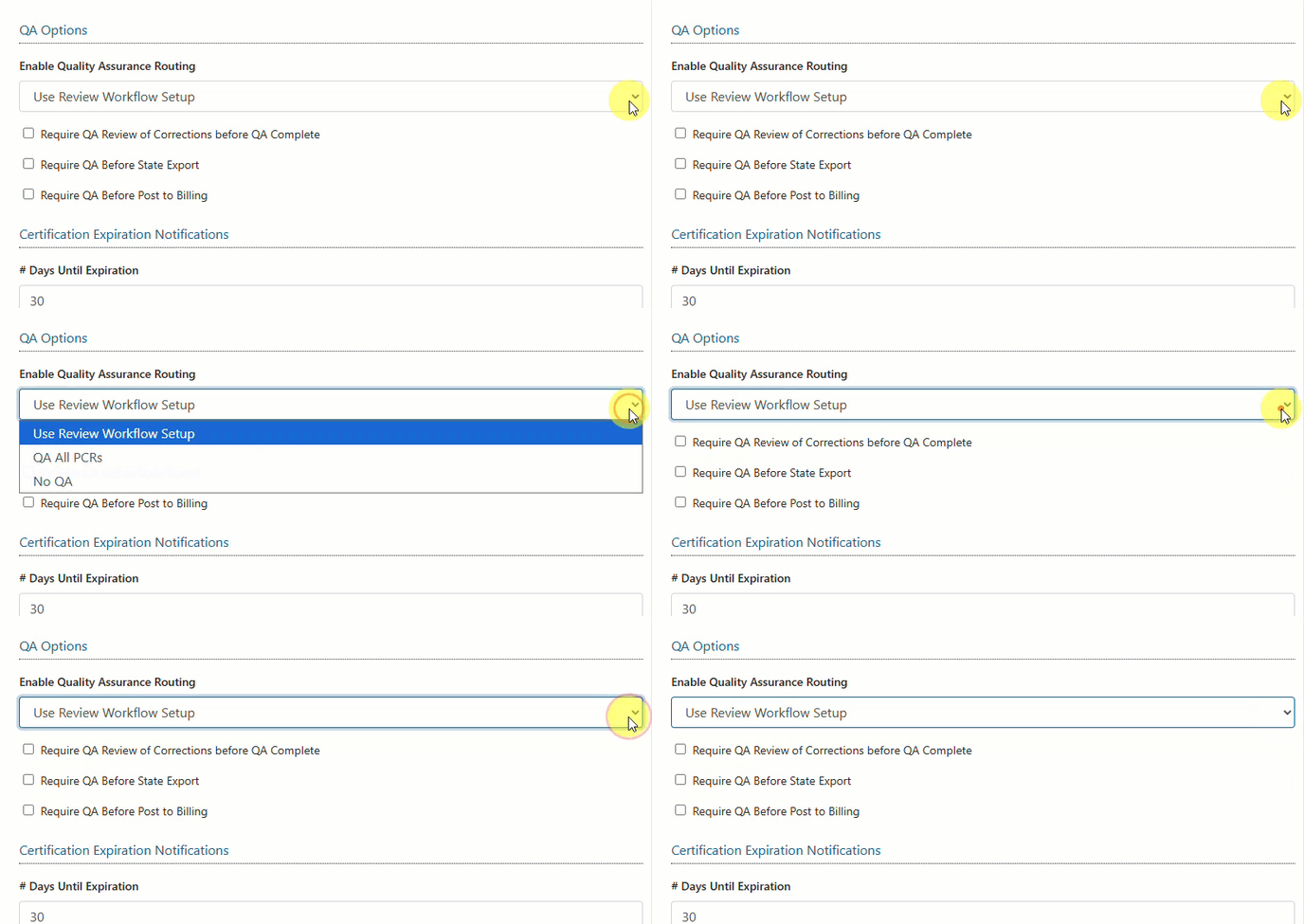
- Use Review Workflow Setup: option allows for a PCR, if the content on that report matches the criteria in the Review Workflow Setup, to move to an In Review status upon completion of the PCR. If the content of the PCR does not match the Review Workflow Setup criteria (covered below), it moves to a Finished status when completed and does not trigger aQA review.
- QA All PCRs option makes it so that when any PCR is completed, it moves to an In Review status.
- No QA option disables the QA Process. If a PCR is completed, it moves to a Finished status (selecting this option would ignore if Require QA Before State Export and/or Require QA Before Post to Billing are selected).
The Require QA Review of Corrections before QA Complete switch requires PCR to be routed to the user for corrections and returned to the QA reviewer before the complete QA button can be selected. This will work with any of the Enabled Quality Assurance Routing options and also with Require QA before State Export and/or Require QA Before Post to Billing checkbox options.
The Require QA Before State Export and/or Require QA Before Post to Billing switches will consider the option selected in the Enabled Quality Assurance Routing dropdown when determining if a PCR should go into QA Review after completion.
When any of the "Require QA Before..." settings are disabled while unreviewed patient care reports exist in the QA process, those reports will still need to be QA Reviewed before they will send to the state and/or post to billing.
To make a user a QA Reviewer, refer to the Roles and User Maintenance Setup screens.
Prerequisites for Setting Up the QA Process
-
- AIM has a customizable review process that can be implemented to trigger a Quality Assurance review on reports that meet specific criteria. This can be configured in Patient Care Setup’s Review Workflow Setup. See below for more information.
- AIM is able to send all of your reports into a review process once they are completed, and potentially hold them from being sent to the state or posted to AIM Billing until the QA Review is complete. This can be configured in Patient Care Setup’s Configuration Switches Setup.
- Your ePCR Trainer will meet to discuss setting up QA settings with you during the training process, but these settings can be updated or disabled by the customer or with assistance from AIM Support.
-
- The QA Process will require the ‘Review’ permission be enabled for the user in General Setup’s Roles Setup to begin a review and to be able to access the PCR Queue’s ‘Review’ filter, where the QA process is managed from.
- A PCR that is returned to a user for corrections will allow the recipient of the routed PCR to view the Review Page of a PCR so they can see what requires correction/updates.
-
- The most effective way to provide quality assurance reviews is to leave detailed review information such that the recipient of the routed PCR easily understands what requires correction and why.
- Reviewers can use the Review Information section to assign a crew member for the corrections/updates, assign an ‘Error Category’ for organization purposes in the PCR Queue.
- Reports can either be returned to a user for corrections, or routed to another reviewer/manager for a second-level review.
- Recommendation is to review the Patient Care Hard Copy Report rather than review individual sections of the patient care report, as the Hard Copy will allow the reviewer to see all data in the PCR in one concise document, as opposed to reviewing individual sections and undergoing load screens between them.
-
- Reviewers will want to routinely conduct the QA review process to not cause a backlog, and also ensure that the users are promptly making corrections, if any, to their reports.
- A backlog of report in review status can not only be a detriment to the Reviewer, but the crew members themselves - the process is most effective when conducted routinely.
- Reviewers will want to utilize the PCR Queue or the QA Report to help identify and assist with determining what PCRs still require a quality assurance review.
- Note: Reviewers can use the QA History Report to review a history of reviewed patient care reports for a specific user, specific error category, or all.
Please contact AIM Support for assistance with setting up or managing your quality assurance reviews.
Setting Specific QA Parameters Using Review Workflow Setup
To set up random or specific criteria for QA Review, go to the Review Workflow Setup of Patient Care Setup.

Each Review Workflow option can be set up for multiple values. All Review Workflow settings work in conjunction with one another.
- Select an item in the Fields Drop-Down Menu. In the ePCR Module.
- Click Refresh to update the grid once a new 'Fields' option is selected.
- Select a Value; this list populates based on the selection in the Fields Drop-Down Menu.
- In the Frequency Field, enter 1 if every PCR is to be filtered; if 2 is entered, every other PCR is filtered. Every number entered follows this pattern.