![AIM Logo Final White RGB@2x.png]](https://3437204.hs-sites.com/hs-fs/hubfs/AIM%20Logo%20Final%20White%20RGB@2x.png?height=50&name=AIM%20Logo%20Final%20White%20RGB@2x.png)
Printing a batch of bills as opposed to printing individual bills one-by-one is the most efficient way to handle patient billing. To print a batch of bills, use the Print button on the Action Toolbar, then select 'Print Batch Bills':
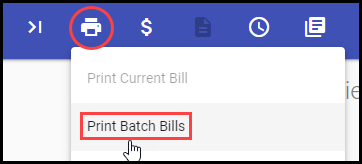
This will direct the user to the Batch Print Search screen:
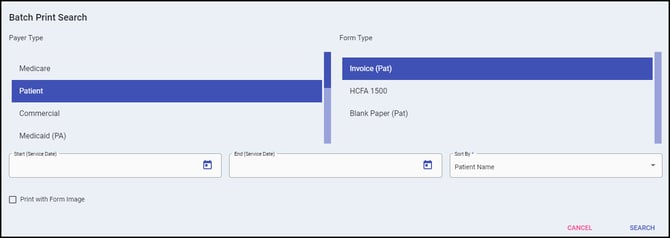
The following sections of the Batch Print Search screen are as follows:
- Payer Type Section: This section is where the user will select the payer type of the batch of bills the user wants to print. In this case, select 'Patient'.
- Form Type Section: This section is where t he user will select the form type of the batch of bills the user wants to print. Depending on which type of patient-type payer has been added to the bill, select either 'Invoice (Pat)' or 'Blank Paper (Pat)' (HCFA 1500 is not a typical form type for patient bills).
- Invoice (Pat): If using pre-printed invoices, this is the patient-type payer that should be added to bills and selected for batch printing. The Patient Invoice is a more professional-looking invoice that requires pre-printed forms.
- Blank Paper (Pat): As the name implies, the Patient Blank Paper bills are meant to print on a blank sheet of paper. This keeps overhead costs down due to not requiring a pre-printed form, but sacrifices a more professional look in favor of the ability to simply print on any blank sheet of paper.
- If pre-printed forms are not being used, be consistent with adding Patient Blank payers to bills.
Contact AIM Support if you'd like to transition from patient blanks invoices to a pre-printed invoice. AIM Support can supply you with the template necessary to use for pre-printed invoices that can be customized further with things such as company letterhead.
AIM Support will recommend that you work with a print servicer to purchase pre-printed forms in bulk to maximize your cost efficiencies.
- Start / End (Service Date) Fields: These optional fields can be used to limit patient billing to only a certain date of service range. These fields aren't typically needed and can be left blank in order to print a batch of all available patient bills, regardless of those bills' dates of service.
- Sort By Dropdown: Use this dropdown to control the order in which the patient bills are compiled. By default, the bills will be sorted by Patient Name, alphabetically. Other sort options available are:
- Zip Code
- Account Number
- Payer
- Service Date
- Bill Number
- Date Entered
- Balance
- Print with Form Image Checkbox: Check this box to download the print file of a batch of bills using a Form Image. A Form Image takes the regular bill and superimposes it atop a system-generated patient invoice. Using a Form Image on a Patient Blank Bill has no use.
Once you have completed the Batch Print Search screen, click the 'Search' button. The Batch Print Select screen will appear.
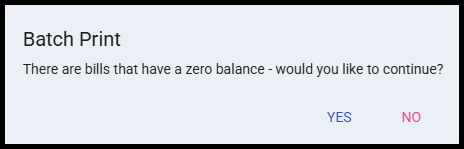
AIM will prompt the user if there are bills that have a $0.00 balance before displaying the Batch Print Select screen. It is recommended to review these bills to confirm they should be printed if you see this message.
Batch Print Select Screen
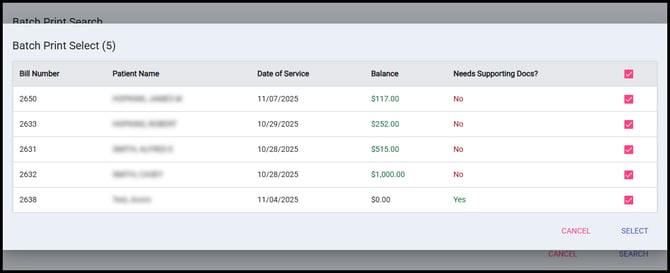
From the Batch Print Select screen, users can see the following details about the bills that are ready to be printed:
- The total number of bills ready to print will be shown in parenthesis next to the title of this screen (see '5' in the image above).
- Bill Numbers, Patient Name, Date of Service and Balance columns indicate details for each bill.
- Each bill also indicates if Supporting Documentation is required to print the bill. Supporting documentation will need to be printed separately from the bill. Bills in need of supporting documentation can be de-selected and printed in a separate batch to maximize efficiency.
Select the bills that you would like to print and then click the 'Select' button. A print file will then be downloaded locally. The bills can then be printed from that file.
Printing batch patient bills can:
- download the actual bills locally (default functionality as described above)
- automatically upload to eServices for e-mail/text options for the patient
- automatically upload to the clearinghouse for printing services
To learn more about optimizing your patient billing workflows with the automatic upload options, please contact AIM Support for more information.