![AIM Logo Final White RGB@2x.png]](https://3437204.hs-sites.com/hs-fs/hubfs/AIM%20Logo%20Final%20White%20RGB@2x.png?height=50&name=AIM%20Logo%20Final%20White%20RGB@2x.png)
In the Billing Module, click the Print button, then hover over the 'Reprint Bill(s)' dialog and select 'Batch'.

This will open the Batch Reprint Search screen. The criteria options in this reprint screen mirror the options available in the Batch Print Search screen, with additional criteria options .

The following sections of the Batch Print Search screen are as follows:
- Payer Type Section: This section is where the user will select the payer type of the batch of bills the user wants to reprint.
- Form Type Section: This section is where t he user will select the form type of the batch of bills the user wants to reprint.
- Depending on the Form Type selection, a Use Local Printer option may appear. This optional configuration can be used if you are utilizing a Clearinghouse format for specific form types. Using this configuration can reprint that bill in the NORMAL format, instead of the CLEARINGHOUSE format. Useful for circumstances where billers are needing a physical copy of a bill that was previously outsourced to the clearinghouse or eServices for print services.
- Start / End (Service Date) Fields: These optional fields can be used to limit reprinting to only a certain date of service range - helpful to reprint a specific batch of bills.
- Start / End (Invoice Date) Fields: These optional fields can also be used to limit reprinting to only a specific range of printing - specifically for invoice form types - based on the date the invoice was printed.
- Limit to claims with outstanding balances: This optional configuration filters the results to only bills that have outstanding balances, that way a paid bill is not accidentally included in this reprint action.
- Sort By Dropdown: Use this dropdown to control the order in which the patient bills are compiled. By default, the bills will be sorted by Patient Name, alphabetically. Other sort options available are:
- Zip Code
- Account Number
- Payer
- Service Date
- Bill Number
- Date Entered
- Balance
- Print with Form Image Checkbox: Check this box to download the print file of a batch of bills using a Form Image. A Form Image takes the regular bill and superimposes it atop a system-generated patient invoice. Using a Form Image on a Patient Blank Bill has no use.

When attempting to reprint a bill with a $0.00 balance, the system prompts you to confirm. It is recommended to review these bills to confirm they should be printed if you see this message. These bills can be manually de-selected in the following screen if this happens, since typically they will not need to be reprinted in most cases.
Batch Print Select Screen
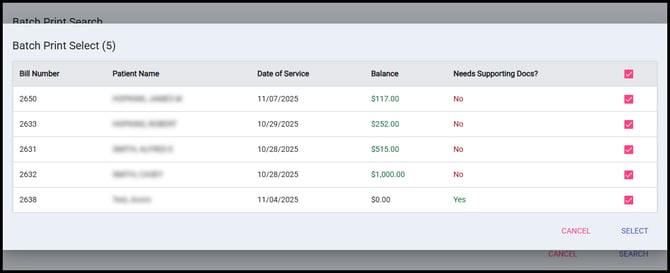
From the Batch Print Select screen, users can see the following details about the bills that can be reprinted:
- The total number of bills ready to print will be shown in parenthesis next to the title of this screen (see '5' in the image above).
- Bill Numbers, Patient Name, Date of Service and Balance columns indicate details for each bill.
- Each bill also indicates if Supporting Documentation is required to print the bill. Supporting documentation will need to be printed separately from the bill. Bills in need of supporting documentation can be de-selected and printed in a separate batch to maximize efficiency.
Select the bills that you would like to print and then click the 'Select' button. A print file will then be downloaded locally. The bills can then be printed from that file.
Note: If configured to automatically upload your patient bills to a clearinghouse, this will resubmit the bills to the clearinghouse unless "Use local printer" is enabled during the Batch Reprint Search screen. "Use Local Printer" will download the bills locally in the normal format instead of uploading it in the clearinghouse format automatically.