![AIM Logo Final White RGB@2x.png]](https://3437204.hs-sites.com/hs-fs/hubfs/AIM%20Logo%20Final%20White%20RGB@2x.png?height=50&name=AIM%20Logo%20Final%20White%20RGB@2x.png)
Allows access to the AIM Billing system by creating a username, password, and Two-Factor Authentication. This is also where Roles for the user are assigned to the user for each Agency they should have access to.
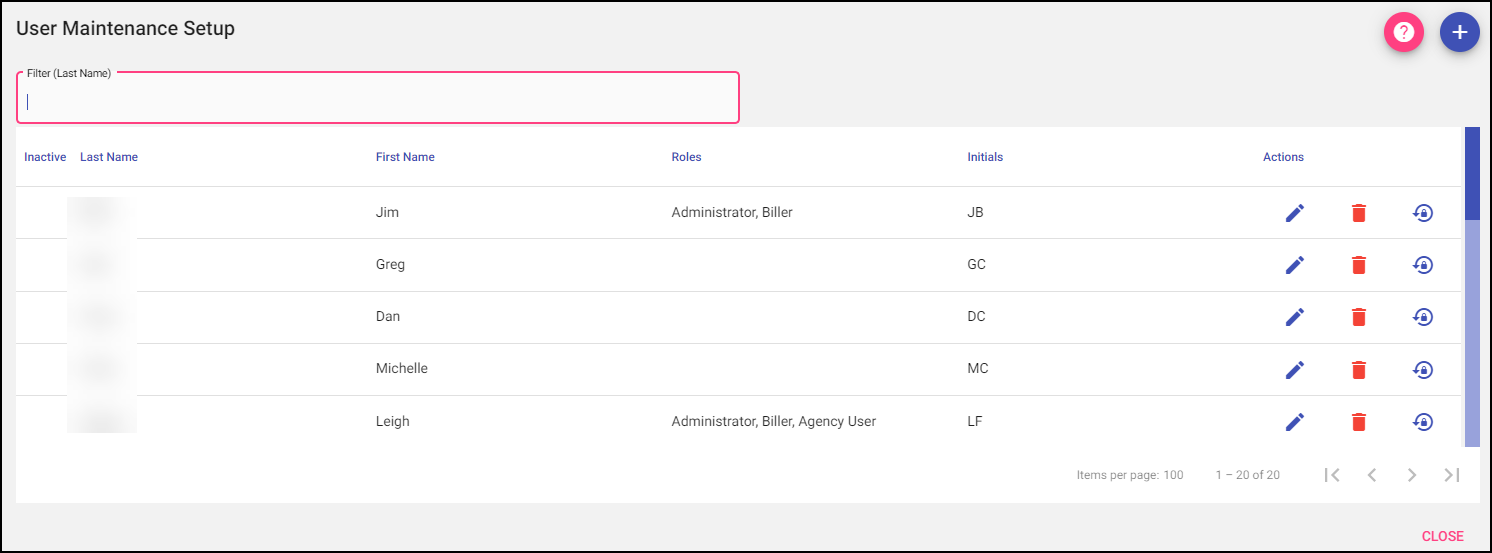
Add: A new user can be added to the list using the plus button on the top right.
When Add is selected, it opens the data entry for adding a new user, including password, email, Agency access with Roles and Two-Factor Authentication. Once the user is entered, select Save to add the user to the list or Save & Add to add the user to the list and add more users.
Selecting Cancel will take the user back to the list of users without adding a new user.

Username is the name that will be used to access the system. This will need to be provided to the user.
The Unlock feature is used to permit a user back into a system they have been locked out of.
Marking a user Inactive disables access to the system completely. These users will be removed as options on the Billing Module, Router Tab and Notification Setup. Inactive users will still appear on Reports and billing data entry they were involved in while active..
Password/Confirm Password must start with a letter or number; they must be 8+ characters long; they must contain at least 1 special character, number and letter.
-
Passwords cannot be equal to one of the two previously-used passwords.
- Passwords expire every 90 days, automatically prompting for a reset during the login process post-expiration.
The Last Name/First Name fields are how the user will be displayed in the system and on Reports.
Initials will be used for Transactions, Narratives and Report purposes.
If duplicate initials are present within the current company, the system will advise you to make the initials unique. Initials can be entered with 2-3 characters and should be unique among all users in your AIM System for accountability purposes.
The Email entered will be used for notifications regarding login and password resets. It will validate that the e-mail address entered is correctly formatted and trigger an error if it isn't.
Last Login is a system generated field that shows the last time a user logged in.
If Has Billing Access is checked, the user will have access to the agency selected.
The Billing Roles Drop-Down contains templates that control access and functionality for this user.
If an associated AIM Dispatch/PCR installation is available, options for access and roles will also be available.
Two-Factor Authentication (2FA)
2FA is an identity and access management security method that requires two forms of identification to access the system.
By providing a phone number and selecting Text Message options, you consent to receive notification messages from the AIM System. Text Message frequency varies based on your configured alerts. Msg & data rates may apply. Reply STOP to opt out, HELP for help.
- If Cell Phone Number is entered, the Cell Phone Carrier must also be selected. If the user's carrier is not listed, Cell Phone Number is not a valid option.
- Email entered will be the email used to send the verification code to log into the system. It will validate that the e-mail address entered is correctly formatted and trigger an error if it isn't.
- Send Welcome Email is optional, if Yes is selected the Date field will also be displayed. This is the date the system will automatically generate the Welcome email for the user. The Welcome Email will provide a link for the user to create a password and configure their Two-Factor Authentication options. The user has 10 days from the email date to complete the process. This email will be sent to the email listed in the Email field (not the email in the Two-Factor Authentication section).
- Resend Email will resend the Welcome Email on demand in case it was deleted by mistake.
User-Specific Form Definitions
If enabled, Billing Form Definitions becomes user-specific, any changes made will not affect any other users for printing. If not enabled, any changes made will affect all users who do not have a user-specific profile set.
The title of Billing Form Definitions will display either "All Users" or "User Specific" to indicate who will be affected by the changes made.
Filter: To narrow the results of a list, begin typing the Last Name you are searching for.

Actions:
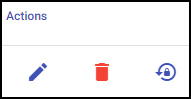
Edit: If changes need to be made to an entry, use the edit button.
Delete: Remove an existing entry.
When deleting a user from User Maintenance Setup, please exercise caution. This could potentially remove that user from any other customer that user has access to. Contact AIM Support with any questions.
Reset Password: Resets the user's password by sending a link via email.