![AIM Logo Final White RGB@2x.png]](https://3437204.hs-sites.com/hs-fs/hubfs/AIM%20Logo%20Final%20White%20RGB@2x.png?height=50&name=AIM%20Logo%20Final%20White%20RGB@2x.png)
This feature is useful for rejecting a Batch of Claims transmitted to Medicare or Commercial payers, balancing a check/EOB or otherwise posting a transaction once, instead of having to post to each Bill Number.
Batch Posting allows all transaction types to be posted, including Payments, Contractual, and Other Transaction Types.
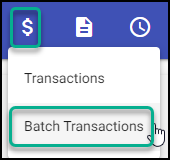
To access Batch Transactions, select the money icon from either the Billing Module or Account Module menu.
Search Criteria
Search Criteria allows the selection to Post By. Results can then be filtered by Account Status, Date Range (Date of Service or Date Billed), Payer Types, Form Types and Payer Names.

Post By allows the selection of Payer Type, Bill Number or Account Number.
If posting by Bill Number or Account Number, not all search fields will be displayed.
Account Status is a multi-select option for all Account Status options.
Date Range Type can be used as Date of Service (date of the bill) or Date Billed (when the bill was transmitted or printed).
Date Range can be any range or a single date.
Payer Types is a multi-select option for Electronic and Paper Forms.
Form Types is a multi-select option and provides a list based on the Payer Type.
Payer Names is a multi-select option of all available payers.
Number Range Start/End (used when posting by Bill or Account Number) is the start and end of the search. For example, Start could be Bill number 12 and End could be Bill number 15, the results would show bill numbers 12-15 that match the selected Account Status.
With the Search Criteria entered, click the Refresh Grid button to populate filtered bill numbers in the grid.
Entering a New Transaction
The New Transaction section provides the expected fields for posting.

Code: This code identifies the transaction internally, and changes required fields.
Note: Further explanation of transaction codes can be found in Transaction Types Explained.
All codes are available for Batch Transaction Postings, including, but not limited to, Rejections and Write-Offs.
Date: This is usually the EOB Date. Keep in mind that this date is used mostly within the Billing Module, but the A/R Module uses the system clock for date purposes.
Description: The text here is populated/linked to the Code Field, but can be free-formed (the populated text can be overwritten). Description is used to specifically identify transactions in reports.
Debit/Credit: Used for the amount of the transaction. Some transactions have no amount, and this field is disabled when those codes are entered.
Optional Fields: Payment Type, Payment Number, Deposit Date, and Receipt Number are used for report and reference purposes, but are not always required.
Link EOB: Allows a saved EOB from the Manage EOB Files utility to be linked to a specific transaction (Payment Number field must be entered to become active).
If an EOB is deleted, it will no longer be available for linking to a transaction or display if previously linked.
Batch Transaction Grid
The grid will display the bill numbers, as found, according to the Search Criteria entered at the top of the screen.
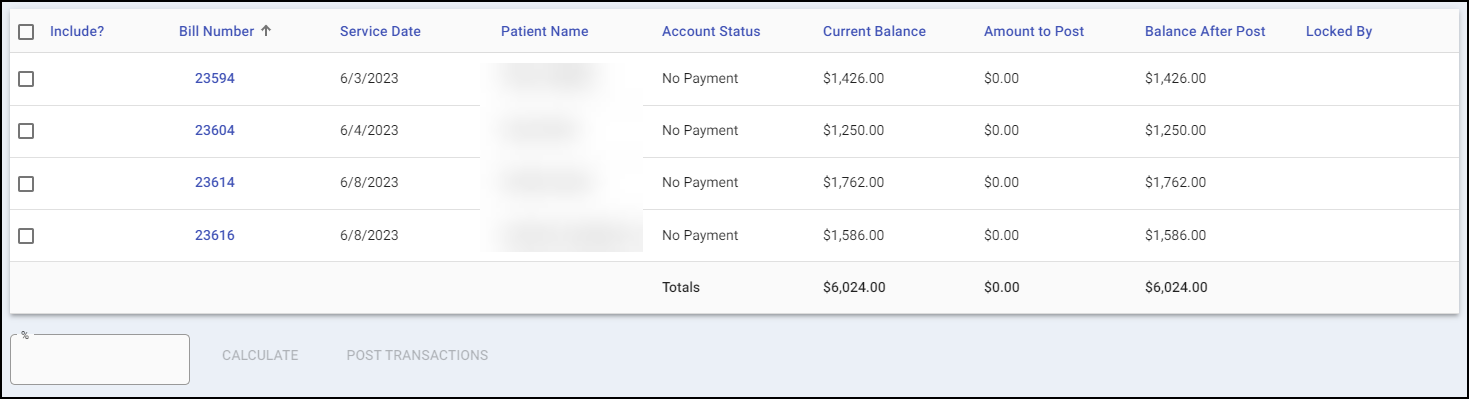
Include? will add the selected Bill as part of the posting (selecting the box beside the title will include all Bills). The number of currently-selected bills will be shown at the bottom of the screen.
Calculate populates data on all included Bill Numbers for Payments or Contractual Allowance codes entered in the New Transaction section. Either an amount or % of the balance will be calculated into the Amount to Post field of the Bill Number.
The percent derives from Approved Amounts (or, if not entered, the Total Balance for each included Bill Number). Approved Amounts can be found in the Payer Approved Amounts Setup.
Selecting the Bill Number from the grid will display the transaction screen specific to the Bill number, allowing entries to be made.
Post Transactions will post all entered transactions to all Bill Numbers included.
Before posting the transaction, always verify that the Debit/Credit Field of the new transaction equals the Total in the Amount to Post Column.
Tip: Always enter the check amount in the Debit/Credit Field when batch posting an EOB to force balancing before posting the entered payments.