![AIM Logo Final White RGB@2x.png]](https://3437204.hs-sites.com/hs-fs/hubfs/AIM%20Logo%20Final%20White%20RGB@2x.png?height=50&name=AIM%20Logo%20Final%20White%20RGB@2x.png)
Data Entry Basics for the Payers Tab
This is not a full description of data entry in The AIM System. For details on adding Payers and other processes, please consult specific help sections or Customer Support.

Payers Tab Options
The following options are available above the Payers grid:
- Set Incomplete Status — Forces the bill payer into an Incomplete status, preventing it from being printed or transmitted prematurely. This is used automatically as part of the Deductible Management process and can also be used manually to remove a bill from the Deductible Management process.
- Insurance Verification — Opens eligibility and coverage detection options for the selected payer.
- Carry From Previous Bill — Available for existing patients. Brings over the bill payers from the patient's last bill when selected.
Payers Grid
The Payers Tab shows all bill payers for a claim. Users can add, edit, and remove payers from the Payers grid. The grid contains the following column headers and values:
- # — Indicates the billing priority order for that payer. The first bill payer will be #1, indicating they will be billed as the primary payer. The second bill payer will be #2, as the secondary payer, and so on.
- Bill Status — Indicates the status of the bill:
- Incomplete: this bill is missing mandatory fields before it can be printed or transmitted. Refer to Field Configuration Setup to find a list of mandatory fields for this payer type. Users can also enable View Mandatory Print / View Mandatory Entry fields by going to More Options on the top menu bar to easily identify fields that are required. When saving the bill, some mandatory entry fields will be shown in the Validation Errors section in the bottom left corner of the screen.
- Waiting: all mandatory fields have been completed. The bill is now waiting to be printed or transmitted.
- Printed/Transmitted: the bill has been printed or transmitted.
- Open: the bill has been added as an Open Bill.
- Account Status — Indicates the account status of the bill. Different statuses indicate different actions or postings:
- When blank, the payer has not yet been billed and has no account status.
- No Payment: once billed, indicates there have been no payments against this payer.
- Partial Payment: once billed, indicates there has been some payment towards this payer, but not in the full amount.
- Rebill: appears once a Rebill (RB) transaction has been posted. Indicates the remaining balance of the claim has been billed to the next payer in priority order.
- Killed: appears once a Kill Bill (KB) transaction has been posted. This automatically changes the balance of the bill to $0.00 without reflecting in ledgers as a write off to bad debt.
- Sent to Collections: appears once a Sent to Collections (SL) transaction has been posted. Indicates the bill has been moved to a collections status and will appear on the Bills in Collections Detailed report, typically provided to a Collections Agency for follow up.
- Hold: appears once a Hold Account (HA) transaction has been posted. Indicates the bill has been temporarily placed on hold to prevent it from being billed or from generating statements prematurely.
- Over Credit: appears once payments are posted in excess of the remaining balance of the bill for this payer. This could happen for a number of reasons, most likely in error.
- Closed: the bill has a $0.00 balance and has been paid/written off in full. If a bill has a closed account status with a remaining balance due, contact AIM Support.
- Active — A checkmark indicates the active payer.
- Description — Indicates the payer type, form type, and policy number for that payer.
- Coverage Status — Indicates the status of that payer's Insurance Eligibility.
- Archive — A checkbox that archives the payer as a read-only historical record. This option is only available for payers in Waiting or Incomplete status. Archived payers are displayed in italics, listed last in the grid, and excluded from all billing functionality. Unchecking the Archive checkbox restores the payer to full billing functionality.
- Actions — Contains the following action icons:
- Move Up/Down: changes the payer priority order of that bill payer in the corresponding direction. Once a payer has been billed, it cannot move up or down in payer priority order unless it is rejected and moved back to a Waiting status.
- View: available only when edit mode is disabled. Allows the data entry for that bill payer to be reviewed at a read-only level.
- Edit: takes the place of the View button when edit mode is enabled. Allows the data entry of that bill payer to be updated or completed.
- Supporting Documentation Flag: allows billers to notify the user printing this bill that additional supporting documents are required. By checking this box, the user printing the bill individually or in a batch will be notified during the printing process.
- For customers utilizing the Task Scheduler for printing bills, the Success Confirmation email will indicate which bills require supporting documentation and a separate print file containing those specific bills will be available in the Task Scheduler Grid.
- Reprint Bill For This Payer: generates a reprinted bill for that specific payer, or generates a printable version of an electronic bill.
- Delete: removes this bill payer from the bill. This can only be done when the payer has not been billed. To delete a payer that has already been billed, ensure there are no debits/credits posted against the payer, then post a rejection transaction and return the payer to a Waiting bill status.
Selecting Payers
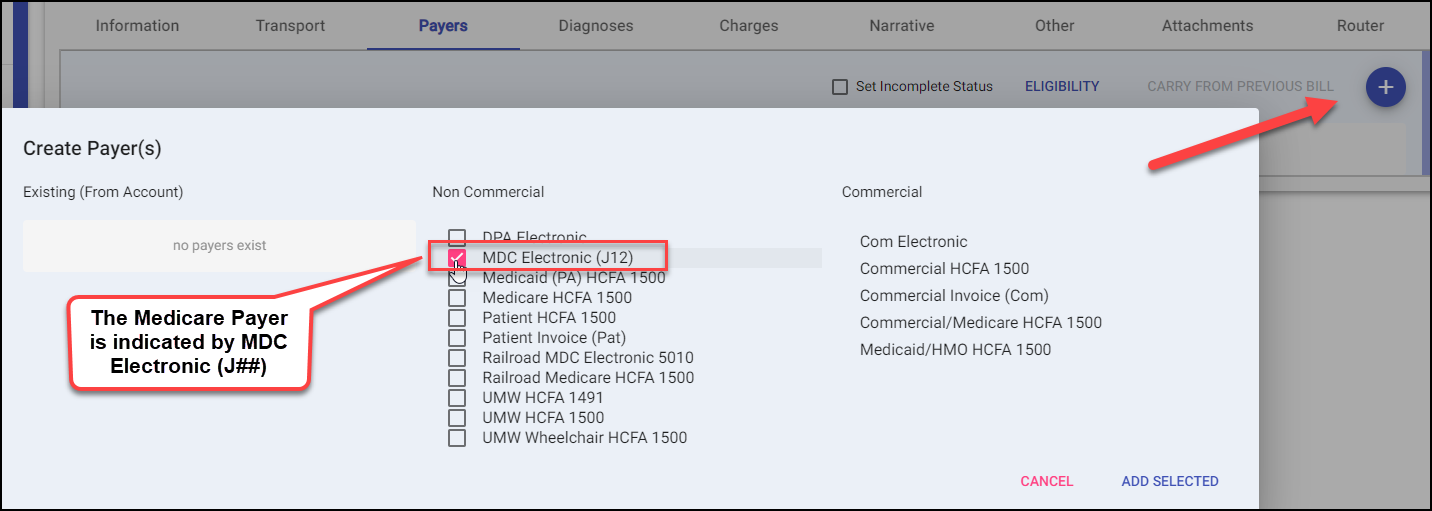
Select the Medicare Payer and "Add Selected"
Data Entry in the View/Edit Payers Screen
Enter data as normal, addressing fields on the View (or Edit, if in edit mode) Payers Screen and the Additional Information Button (there are three tabs in Additional Information).
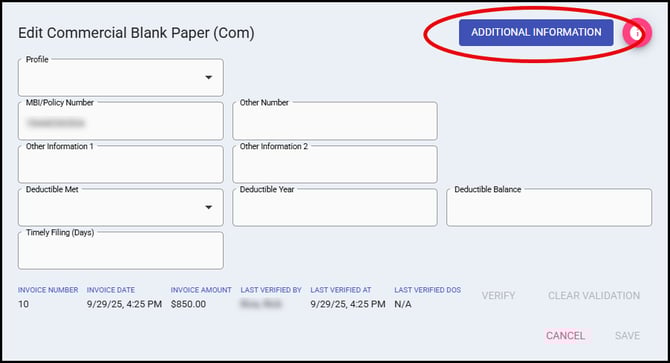
- Profile — Applies a saved billing profile to the payer, auto-populating fields based on the profile's configured values.
- MBI/Policy Number — The patient's Member Beneficiary Identifier (MBI) or insurance policy number for this payer.
- Other Number — An additional identification number as required by the payer (e.g., group number, plan number).
- Other Information 1 / Other Information 2 — General-purpose fields for supplemental payer information as needed for claim submission.
- Deductible Met — Indicates whether the patient's deductible has been met for this payer.
- Deductible Year — The calendar or plan year associated with the deductible status.
- Deductible Balance — The remaining deductible balance for the patient under this payer.
- Timely Filing (Days) — The number of days from the date of service within which a claim must be submitted to this payer. This value is used by the Timely Filing Management feature to automatically route the bill for review before the filing deadline expires. Values sync between the Bill Payer and Account Member Payer automatically.
Additional payer fields are available by clicking the Additional Information button in the upper-right corner, which contains up to three tabs of supplemental billing data.
Data must be entered specific to how the payer processes each field. Requirements may differ between payers, states, and individual claim details. Because of this, Customer Support is unable to advise on how to bill any specific payer, including Medicare.
Timely Filing Management
The Timely Filing (Days) field on the View/Edit Payers screen tracks how many days from the date of service a claim must be submitted to the payer. When a value is entered, the system automatically calculates the filing deadline and routes the bill to the biller who created it before that deadline expires, giving time to review and transmit. Bills that have already been submitted to the payer are skipped.
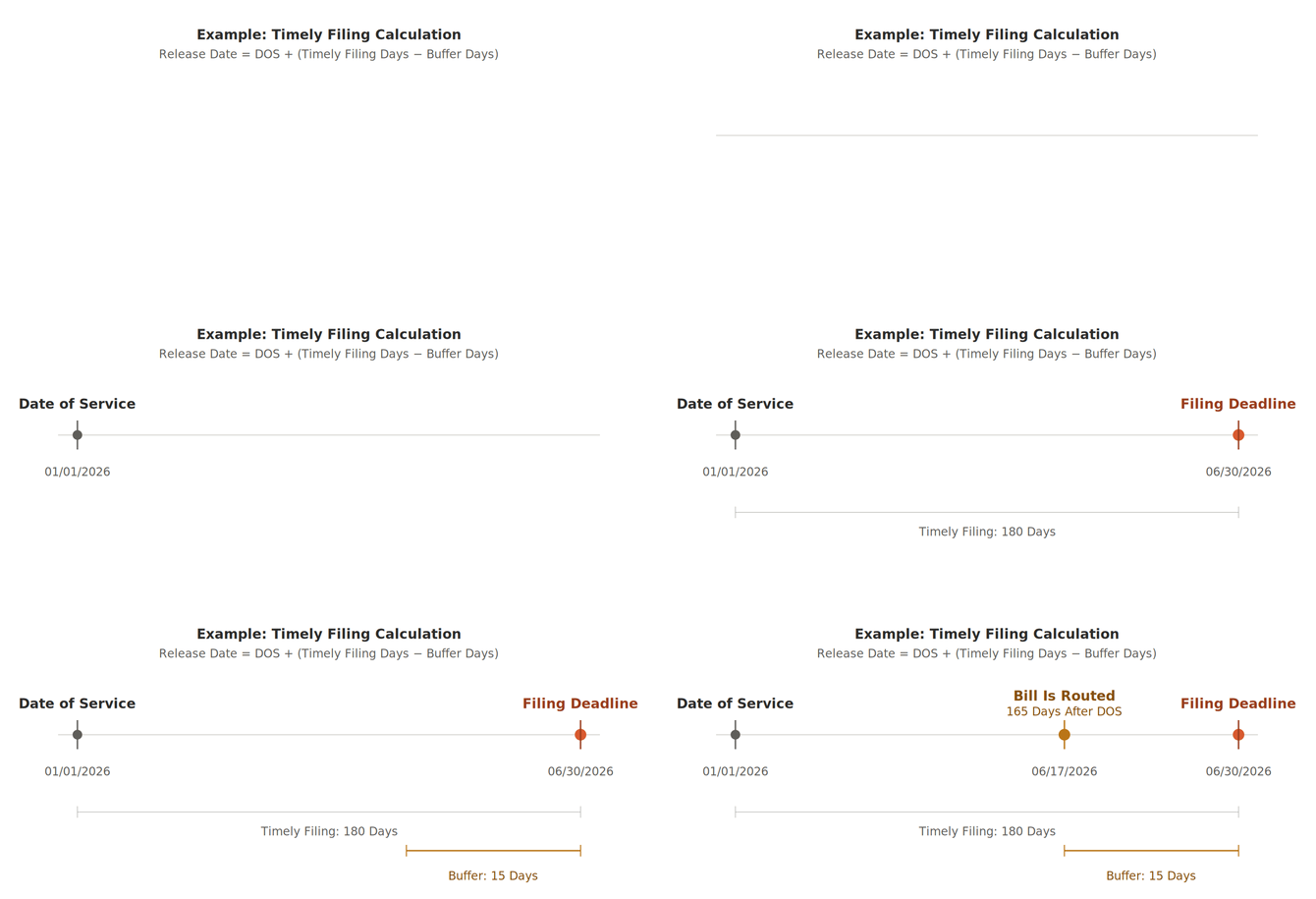
The timing of the route is determined by the Timely Filing Buffer (Days) setting in Billing Configuration Settings Setup. For example, if a payer's Timely Filing (Days) is 180 and the Buffer is 15, the bill is routed 165 days after the date of service — 15 days before the deadline. This buffer gives the biller 15 days to get that claim out the door before the timely filing deadline.
The Timely Filing (Days) value automatically stays in sync between the Bill Payer and Account Member Payer. When a payer is added to a bill, the value carries from the account member. When a bill is saved, the value writes back to the account member if it is missing or differs. When using that account member payer on a future bill for that patient, the Timely Filing Days value will populate automatically.
Since Timely Filing deadlines can be policy-specific, there is no option to default the Timely Filing Days at the payer level. Billing Profiles and managing these deadlines on an individual-account basis are the recommended approaches.
Electronic Secondary Claims
If billing to a secondary payer electronically, refer to the Electronic Secondary Guide.
Validating Electronic Bills
Saving Your Bill
Click the Save button in the billing module's menu bar to save your electronic bill. The system will verify that all mandatory fields configured for the selected payer type have been completed.
Important: Bills cannot be transmitted electronically until all mandatory fields are populated. Any missing required fields will appear in the validation errors section.
Electronic Transmission Validation
Enable Electronic Transmission Validation on Save in Billing Configuration Settings Setup to automatically validate your bill against AIM's electronic claims rules during the save process. This feature:
- Validates claims using the same rules applied during batch transmission
- Identifies potential rejection and denial reasons before submission
- Particularly useful for secondary billing scenarios
- Improves overall claim quality and reduces resubmission rates
How It Works
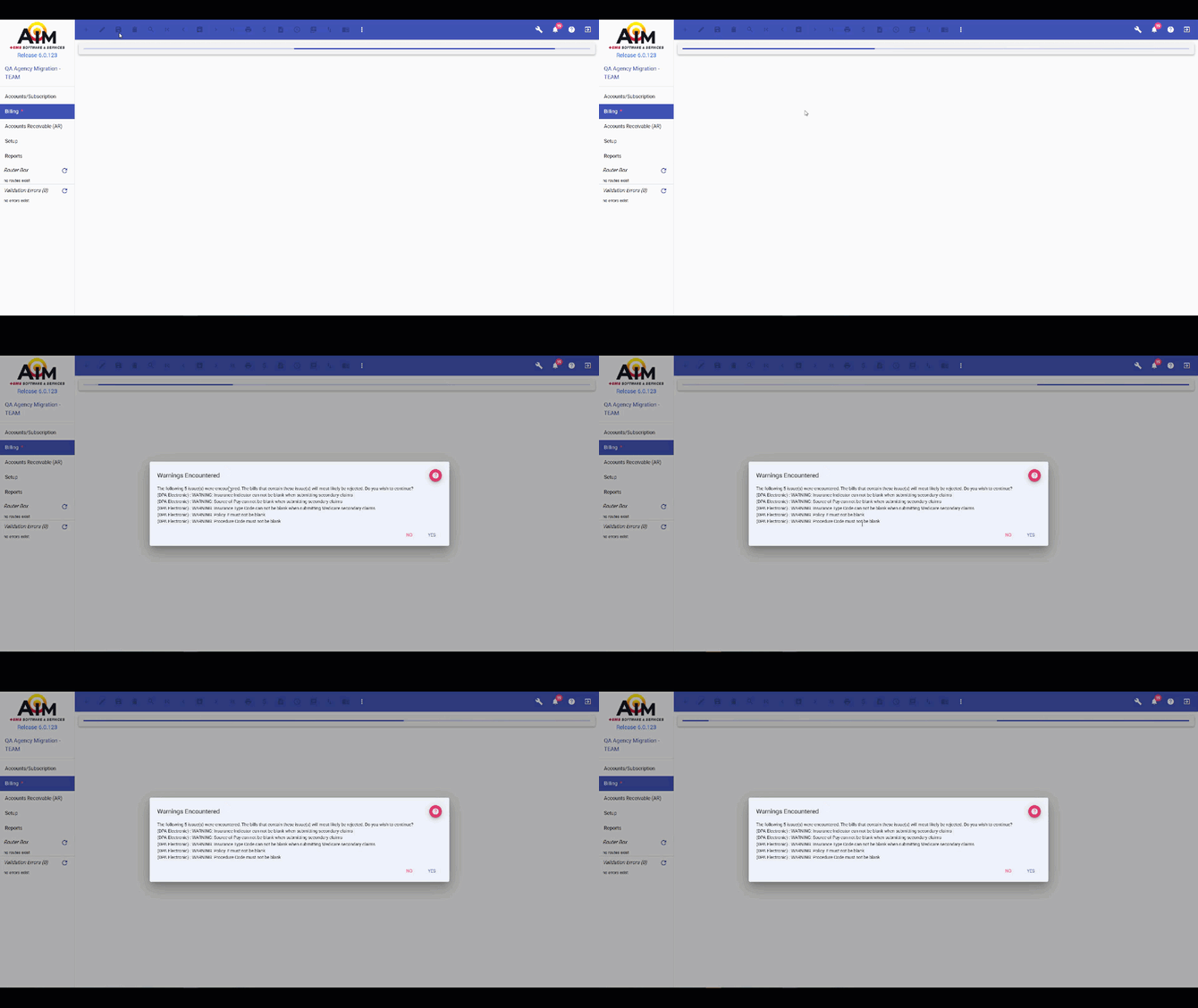
When this feature is enabled and you save a bill with an active electronic payer with all mandatory fields completed:
- A "Please wait" message appears during validation
- The system displays claim-level warnings and errors in a popup window
- Field names and payer information (when applicable) are clearly identified
- You can choose to:
- Continue - Proceed with saving the bill to Waiting status
- Cancel - Return to edit mode to address validation issues
Note: Bills are only revalidated if their status has changed since the last validation, preventing unnecessary processing delays.
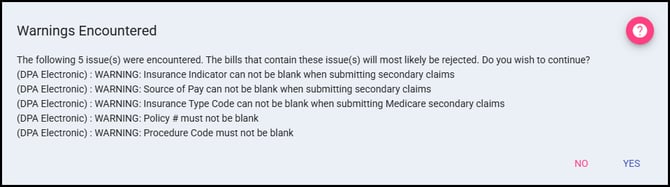
While this validation adds processing time to the save action, it significantly reduces downstream rejections/denials and improves first-pass acceptance rates.
AIM automatically validates your entire batch of claims against these rules during the transmission process. However, batch validation requires navigating back to individual bills to make corrections, which can be time-consuming when multiple bills contain errors.
Enabling Electronic Transmission Validation on Save in Billing Configuration Settings Setup provides a more efficient workflow by validating each bill individually at the point of entry. This approach allows you to identify and correct issues immediately, rather than discovering them during batch transmission when context switching between multiple bills becomes necessary.
Reprinting Electronic Bills
One a bill is sent electronically, users can reprint that bill using the Reprint Bill button in the Actions column:
