![AIM Logo Final White RGB@2x.png]](https://3437204.hs-sites.com/hs-fs/hubfs/AIM%20Logo%20Final%20White%20RGB@2x.png?height=50&name=AIM%20Logo%20Final%20White%20RGB@2x.png)
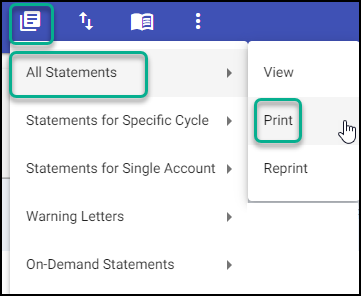
In the Billing Module, click the Print Statements Icon.

From the menu, select All Statements, Print.
Complete field selections.
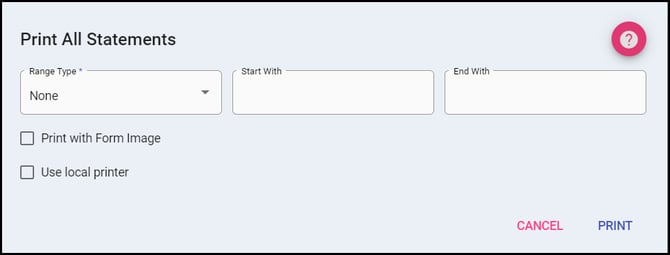
- Range Type options (select None, unless there is a specific mailing need for limiting the statements):
- None: no additional criteria needed, all statements that are ready will be printed.
- Bill Number: print statements for Bill Numbers defined by the start and end fields.
- Account Number: print statements for Account Numbers defined by the start and end fields.
- Zip Code: print statements for Zip Codes defined by the start and end fields.
- Print With Form Image allows for statements to print with a pre-designed form (which can be customized in Form Images Setup), without the need for pre-printed forms to be loaded in the printer.
- Use local printer (will only be displayed if applicable): print statements to a local printer (in house printing) using Form Definitions, rather than printing a file for a clearinghouse.
After processing, the system will show how many statements are to be printed (downloading a file if applicable).
A prompt will be displayed to determine if a transaction should be posted.
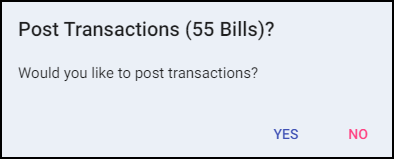
Yes; the SG Transaction then posts to all the accounts (to the earliest Bill Number with an open balance), and other tables are updated.
No; statement processing does not update Account/Bill Numbers, nor are the cycles affected. Statements can be generated at a later time as normal, and the SG transactions are not posted.
Printing patient statements can:
- download your statements locally for you to print manually (default functionality as described above)
OR
To learn more about optimizing your patient billing workflows with the automatic upload options, please contact AIM Support for more information.